01
Appointments
Customers normally book before arriving.
For service businesses that do not fit a preset
Kipas Service Studio is the configurable Kipas workspace for service businesses whose day is built around appointments, a counter queue, both, or POS-first work. Tell us how work arrives, how your team handles it, and which customer and team tools you need. Kipas keeps customers, sales, receipts, staff, and reporting connected.
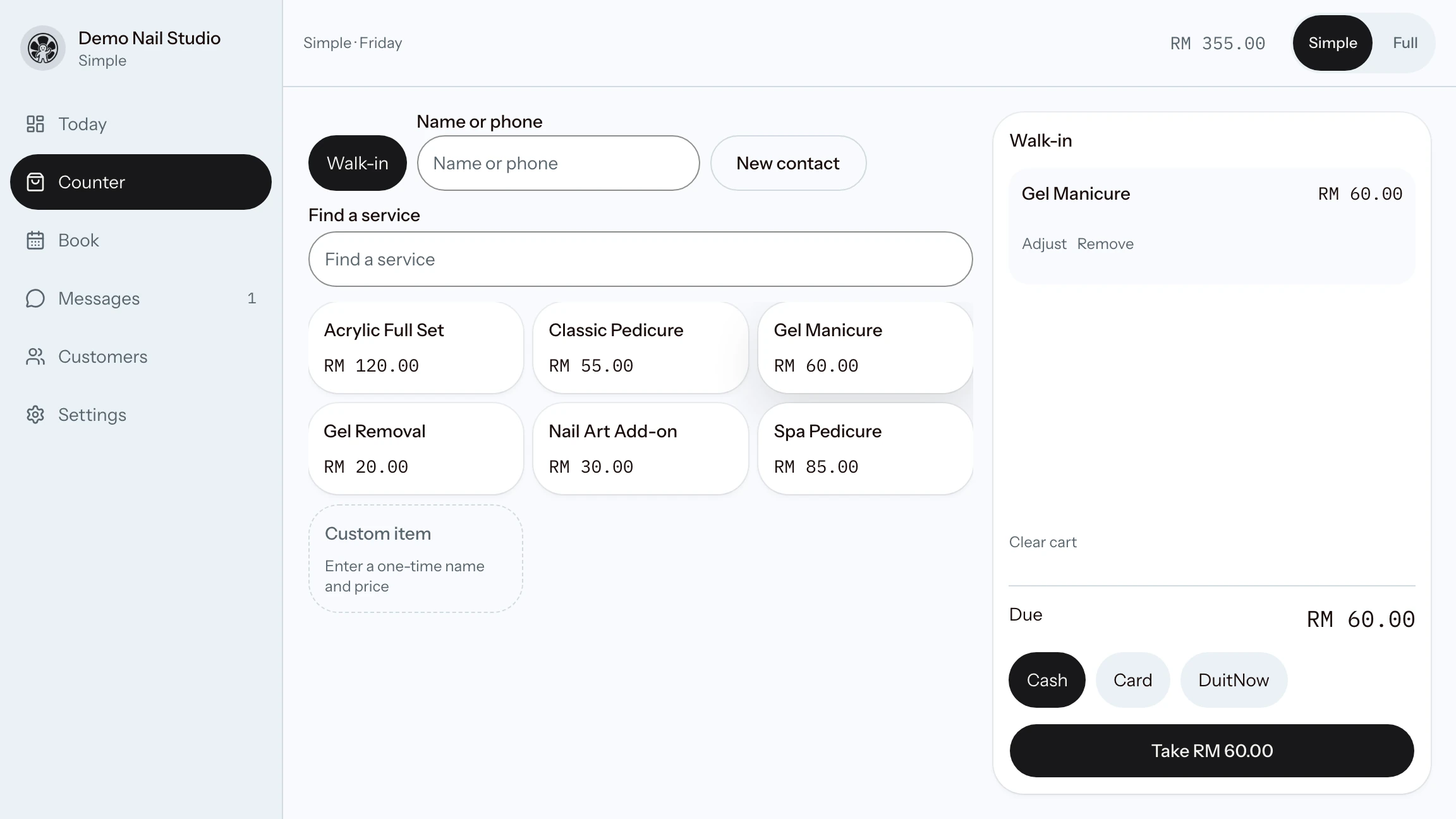
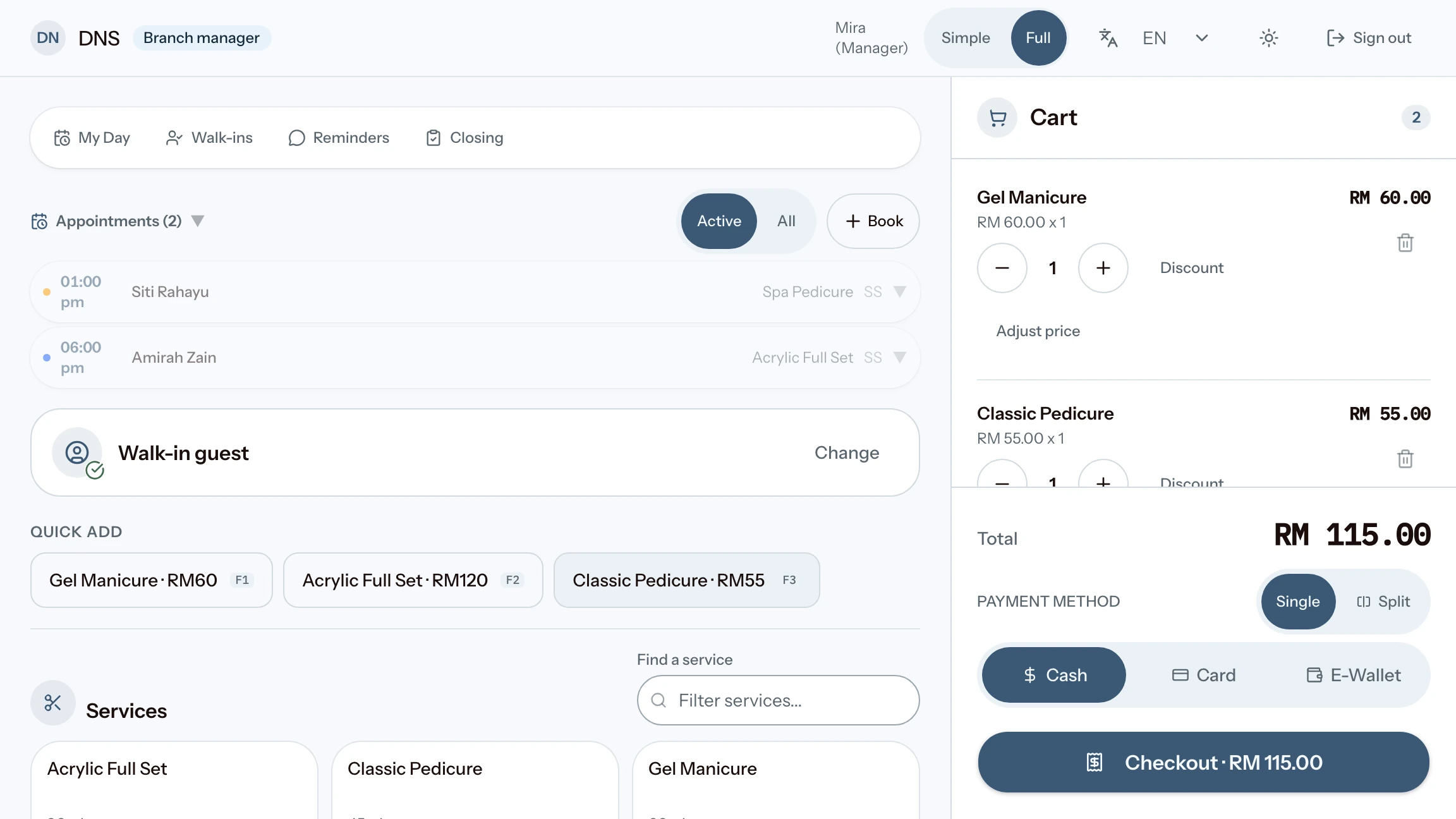
What this shared demo shows
Guided fit checker
Answer up to 3 short questions. Your selections stay in this page session and are not sent to Kipas.
Choose how work arrives
The workday pattern sets the order and labels of compatible tools. It does not create new permissions or specialized workflows.
01
Customers normally book before arriving.
02
Customers normally arrive without a booking.
03
The team handles scheduled and walk-in work.
04
Work is recorded and charged as it happens.
Always included
The shared core keeps the main business record together, even when the supporting tools differ.
Simple and Full are 2 views of the configured workspace. They do not change entitlements, records, or role permissions.
Choose supporting tools
Kipas prepares the compatible modules during onboarding. Specialized operating lifecycles are not ordinary module choices.
Example configurations
These are configuration examples. They are not separate Kipas editions.
Appointment-led
Counter-led
Hybrid
If the business holds customer property through Received, In Progress, Ready, and Collected stages, Repair Counter is the better fit.
Choose the right edition
Service Studio combines the shared Kipas core and compatible customer and team tools. Specialized operating lifecycles use purpose-built Kipas editions.
For customer property, job stages, estimates, deposits, collection, and warranty.
For dated event orders, locations, preparation, fulfilment, deposits, and final balances.
For practitioner schedules, group sessions, rooms, and specialized resources.
For case accounts, scope approvals, submissions, documents, deadlines, client updates, and case payments.
For salon and beauty appointments, walk-ins, checkout, customer history, and closing.
Case, submission, document, deadline, and file-based work is supported in Kipas Professional Services through its case-account workflow.
How setup works
The public fit checker gives guidance only. It does not save a configuration, create a tenant, or change the shared demo.
01
Explain whether work starts with appointments, a counter queue, both, or POS.
02
Select the compatible customer and team tools the business needs.
03
Check the prepared workspace before the team starts.