Kipas · Service operations
The Kipas Guide,
start to close.
One fully worked service day with Kipas: onboarding, the counter, bookings, money, and recovery steps.
Every rule here applies to all six editions. A salon day runs as the worked example because it uses the most tools at once, and each edition has its own chapter for the part of the day that differs: retail jobs (15), catering events (16), wellness visits (17), professional sessions (18), and events and venues (19). The counter, money, and closing chapters are the same for everyone.
For owners, managers and counter teams
A practical reference for the main workspace. · August 2026 edition
20 chapters
Find what you need
- 01Three golden rulesREAD THIS FIRST
- 02Getting startedONBOARDING
- 03Making a saleTHE COUNTER
- 04Member benefits, automaticTHE COUNTER
- 05Taking payment & receiptsTHE COUNTER
- 06Customers & notesRELATIONSHIPS
- 07Appointments, walk-ins & professional casesTHE BOOK
- 08Packages & membershipsRETENTION
- 09Wrong sale? VoidsMONEY CORRECTIONS · OWNER ONLY
- 10Giving money back: refundsMONEY CORRECTIONS · OWNER ONLY
- 11Daily closingTHE NIGHTLY RITUAL
- 12The owner's toolkitBACK OFFICE
- 13Hiccups, A to ZTHE CHAPTER THAT ANSWERS YOUR PHONE
- 14Good habits & the words we useKEEPING IT HEALTHY
- 15Retail jobsYOUR EDITION
- 16Catering eventsYOUR EDITION
- 17Wellness visitsYOUR EDITION
- 18Client sessions & professional case workYOUR EDITION
- 19Events and venuesYOUR EDITION
- 20Kipas AIOPTIONAL ASSISTANCE
Three golden rules
Ninety percent of every question we've ever been asked is answered by these three rules. Everything else in this guide is detail.
RULE 1: NOTHING IS EVER SENT FOR YOU
Kipas will never message your customers by itself. Every reminder, follow-up, and booking confirmation appears in your Messages queue as a prepared WhatsApp message. Your staff taps it, reads it, edits it if needed, and presses send, from your own WhatsApp number. In this release, Kipas AI does not write messages addressed to customers. Kipas AI still helps staff with reports, record explanations and summaries, briefings, import and attachment previews, and Guide questions. WhatsApp opens the exact text that is on screen. Deterministic controls exclude anyone marked Do not contact from reminder and follow-up targets until an owner turns that setting off. Start morning queue presents reminders and follow-ups one at a time. Each tap opens one prepared message, and Skip records that the item was set aside. In a public demo, reminder and follow-up drafts open without a recipient, so the experience cannot address a real person. Booking confirmations stay preview-only because they create a live customer action link. If the queue is empty, nothing went out.
RULE 2: VOID AND REFUND ARE DIFFERENT THINGS
Void = the sale was a mistake and should never have counted. It disappears from the day's money and anything the customer spent (package credit, a free visit) is given back.
Refund = the sale really happened, and later you returned some or all of the value. The sale stays in history; the refund is recorded as its own event on the day you issue it.
Both are owner-only, both ask for a reason, and both are written permanently into the Audit Log. Chapters 09 and 10 explain exactly when each is allowed.
RULE 3: A CLOSED DAY IS LOCKED
When you run Daily Closing at night, that branch's day is sealed: no new sales into it, no refunds from it, no edits. If you must fix something, reopen the day, fix it, and close it again. This is not the app being difficult: a locked day is what makes your cash, commissions, and reports trustworthy.
A QUIET FOURTH
Your data is yours. Customer lists and receipts export to CSV whenever you want. There is no lock-in, and leaving never strands your records.
This guide uses one salon day as the fully worked example. Other service businesses follow the same operating rules. The workspace adapts its language and visible modules to the selected business type.
Getting started
From "you've been invited" to serving your first customer: about fifteen minutes.
2.1 Your first ten minutes
- 1
Open your business link
Open your business link (shown during onboarding as hi.onlykipas.com/{your-business}) on your phone, tablet, or laptop. No downloads, no app store.
- 2
Set your password
Open the secure Kipas account email and choose your own password. The link can be used once. If you need another email, ask the owner. Kipas limits repeat account emails for ten minutes. The sign-in page then shows your business name, logo, and colour.
- 3
Add to Home Screen
Add to Home Screen (Safari: Share → Add to Home Screen; Chrome: menu ⋮ → Add to Home screen). It now opens like an app, full screen.
- 4
Keep your account secure
Keep your password private. The business owner and Kipas cannot see it. Use Forgot password? on the sign-in page if you need a fresh reset link.
IF YOUR WORKSPACE ISN'T OPEN YET
Your account email can arrive a little before your workspace is switched on. If your business link says setup isn't finished, nothing has gone wrong and nothing is lost: your password is already set and you simply cannot sign in yet. Contact Kipas, then try the same link again once your workspace is open.
The same page also covers the two other times a workspace will not open: one that is temporarily unavailable is expected back, and one that is closed belongs to a business that has left Kipas.
SIMPLE OR FULL: PICK YOUR DESK
Everyone gets a personal Workspace switch: Simple or Full. Simple is the quiet desk: Today for the morning board, counter, today's book or jobs, prepared WhatsApp, and customers (a browsable A-Z list; type to narrow it). A salon day starts on Today; a repair shop starts on Jobs. Drag a repair card by its grip to change its priority in the same column, or drop it in Received, In progress, or Ready to request that stage. A stage drop opens the audited Change stage dialog before anything changes. Diagnosis and approval rules still apply, and a backward move needs a reason. Use the compact priority menu when dragging is inconvenient. Simple and Full save the same priority and stage. Completed and cancelled work stays in Archive. An abandoned item is cancelled with a reason, then remains available as a closed record. Each new repair opens one Repair Job Account for the item identity, received condition, customer report, acknowledgement, diagnosis, estimate, payment plan, receipts, warranty, and history. Repair intake, payment, stage changes, and handover stay on Jobs, never POS. Jobs also carries the prepared WhatsApp messages: the estimate while a decision is awaited, and the collection notice when the work is ready. On the counter, choose a registered customer or Walk-in before adding anything. You can add a new contact, keep the cart on screen, switch the buyer with untouched catalog prices recalculated, and adjust a line price with a reason. A repair shop can also open or add a job from the counter, but a normal product sale stays separate from that job. For a salon, Book opens on a staff schedule. It shows the selected day in staff lanes. Select an available time slot to start a booking with that date, time, and staff. Drag a booking to another time or another staff lane to move it, and a message offers Undo for five seconds. Select Agenda to use the compact hour timeline with free gaps. You can move to tomorrow or any date. Historic schedule days stay available for reference, but their slots cannot create a new booking. Tap a booking to move it along, charge it, change its time, or cancel it. Once a booking is in progress it has nowhere further to move, so charging it is the next step and the move button steps aside. When you change the day or the branch, the board keeps showing what it had until the new day arrives, but its bookings cannot be opened or changed for that moment, and an open booking closes: what is on screen belongs to the day you just left, so Kipas will not act on it under the new one. Charge stays hidden once that customer already has a live receipt for the booking, or once the visit is done; adding an appointment picks the service, staff, and a time slot with taps. Daily closing stays available to the owner or manager from Settings or Today's sales, not on the main dock. Full is the complete view of the configured workspace. In every workspace, Book and Messages appear in Simple only when their modules are on. Full uses the same module configuration. Module visibility shapes the interface; it does not replace role permissions. New accounts start in Simple; switch yourself any time (Simple: Settings; Full: the header or your profile sheet). The switch changes which screens you see, never the numbers, receipts, or what your role may do.
On a phone or desktop, Simple also has a visible Full control in the header. Finish or clear the current counter sale before selecting it. The mode switch keeps you in the current view while a sale is active. Once it is clear, it changes only which screens you see, never data, receipts, or permissions.
A Catering and events workspace opens Simple on Event orders, not Today. Each card shows the customer's original order, event time, fulfilment method, event location, setup time, dietary notes, and an optional guest count. Use Full to create or edit events and record deposits or final balances.
A Professional Services workspace opens Simple on Cases, not Today. Each card shows the case number, the client, who owns the next action, the deadline, and the balance. Simple shows cases in place of the book. Use Full for the appointment book and the online booking request inbox. In Simple, you can use the normal case actions that your role permits.
2.2 Who can see what
| ROLE | WHAT THEY DO | WHAT THEY CAN'T |
|---|---|---|
| Staff | POS sales, walk-ins, bookings, customers, their own day | Money corrections, closing, settings, reports |
| Branch manager | Staff abilities, plus branch-level oversight | Voids, refunds, settings (owner territory) |
| Owner | Everything, including voids, refunds, closing, staff, settings | Nothing |
The owner can further tune which pages staff and managers see, in Settings. When in doubt, keep staff simple: POS and their day.
2.3 Finding your way around
- Sidebar (left, desktop): Today, Work, and Customer Care stay open for daily tasks. Expand Money, Team and catalog, Business setup, or Location when you need management tools. One management section opens at a time, and the section for the current page opens automatically. Guide and, for owners, Settings stay pinned at the bottom. Only pages enabled for your role and workspace appear.
- On phones: one compact header shows the business and current branch. Tap ☰ for the full page map. The four-item dock keeps the daily routes close without covering the phone corners.
- Branch selector: filters almost every screen to one branch, or All Branches for the whole business. Owners can tap the branch chip in the phone header. Managers and staff see the branch or branches assigned to them. In POS, the selected branch is where the sale is recorded, so check it before checkout.
- Profile controls on phones: tap the profile button for language, theme, account details, and sign-out. These choices stay on this browser and device.
- Desktop controls: use the top bar for branch, language, theme, and account actions.
- Guide navigation: use the chapter rail on a larger screen or the chapter picker on a phone. Common tasks and recovery links appear before the full chapters. Every chapter keeps a stable link that you can bookmark or share.
2.4 First-day setup checklist (owner)
A new workspace shows setup progress on Overview and a temporary Setup item near the top of the sidebar. Each status opens the matching wizard step. Both disappear after all required checks are ready. You can still open the wizard from Settings. The wizard orders its steps for your business type and removes optional steps when the related workspace module is off. For a non-salon workspace, the owner can also choose the workday pattern in Settings. The pattern changes the order and labels of existing work. It does not create new permissions or routes. In an Other Service workspace, a schedule-led pattern needs Bookings, a counter-led pattern needs Walk-in queue, and a hybrid pattern needs both modules. Setup shows a review warning until the pattern and modules match. The review step still shows each named readiness check.
- Settings: shop name, receipt footer, SST on/off + rate, receipt logo or emoji
- Online Booking: enable requests, choose bookable services and staff, then copy the public link or QR code from Settings
- Services: set names, durations, prices, member prices, and public booking categories. Create categories from Booking categories, choose a fixed icon, then assign each public service. A service without an active category stays under Other services.
- Schedule: working hours and days off per person
- Customers: add your regulars (name only is fine; phone optional)
- Branches: set the address and phone used on receipts. Edit a saved branch to set each weekday's operating hours in 15-minute steps. Mark a weekday closed, or add a special date with a full closure or custom hours. These effective hours control booking availability and dashboard operating context. The public booking profile stays private until you publish each field. Cover images are center-cropped to 3:1 and converted to WebP in your browser.
- Staff: add each person, pick their role and branch
- Packages / Memberships: if you sell prepaid credit or member plans
- Make one test sale: walk-in, one service, cash. That's it, you're live.
SHARING YOUR BOOKING LINK
Your public booking page follows the format hi.onlykipas.com/{your-business}/book. Copy the exact link from Settings before you put it in your Instagram bio, Google profile, or WhatsApp auto-reply. In Pending requests mode, your team must accept each request. In Auto-book mode, a request inside your booking rules goes onto the calendar at once.
Available times refresh automatically when a customer changes the branch, service, date, or staff. The current tab remembers only those four choices. It does not remember contact details or a selected time. On a larger screen, categorized service choices sit beside a summary that stays visible. On a phone, the same steps stay in one continuous form. No payment is taken on the booking page; the customer pays at your business.
On phones, the appointment choices, available times, and customer details stay in one grouped form. Today, Tomorrow, and Next available help the customer choose a time. A summary and the send button stay visible at the bottom while the customer completes the form.
The selected branch controls its public cover, address, booking hours, and Instagram link. Existing branches show none of these fields until the owner publishes them from Branches.
PUBLIC DEMO
Visitors can open six restricted manager workspaces from onlykipas.com without login details. Salon, wellness, professional services, catering and events, repair counter, and Service Studio each have separate fictional data that resets every day. These workspaces are separate from your business. The guided checklist follows the selected workspace and uses its fictional records. Demo managers can inspect Schedule. Resources appear as a read-only example in the wellness and professional workspaces. Demo staff receive Reminders and do not receive these manager-only pages. Sensitive settings, attendance, commissions, and daily closing stay unavailable.
Making a sale
One flow, every time: who → services → payment → checkout. Learn it once and the counter runs itself.
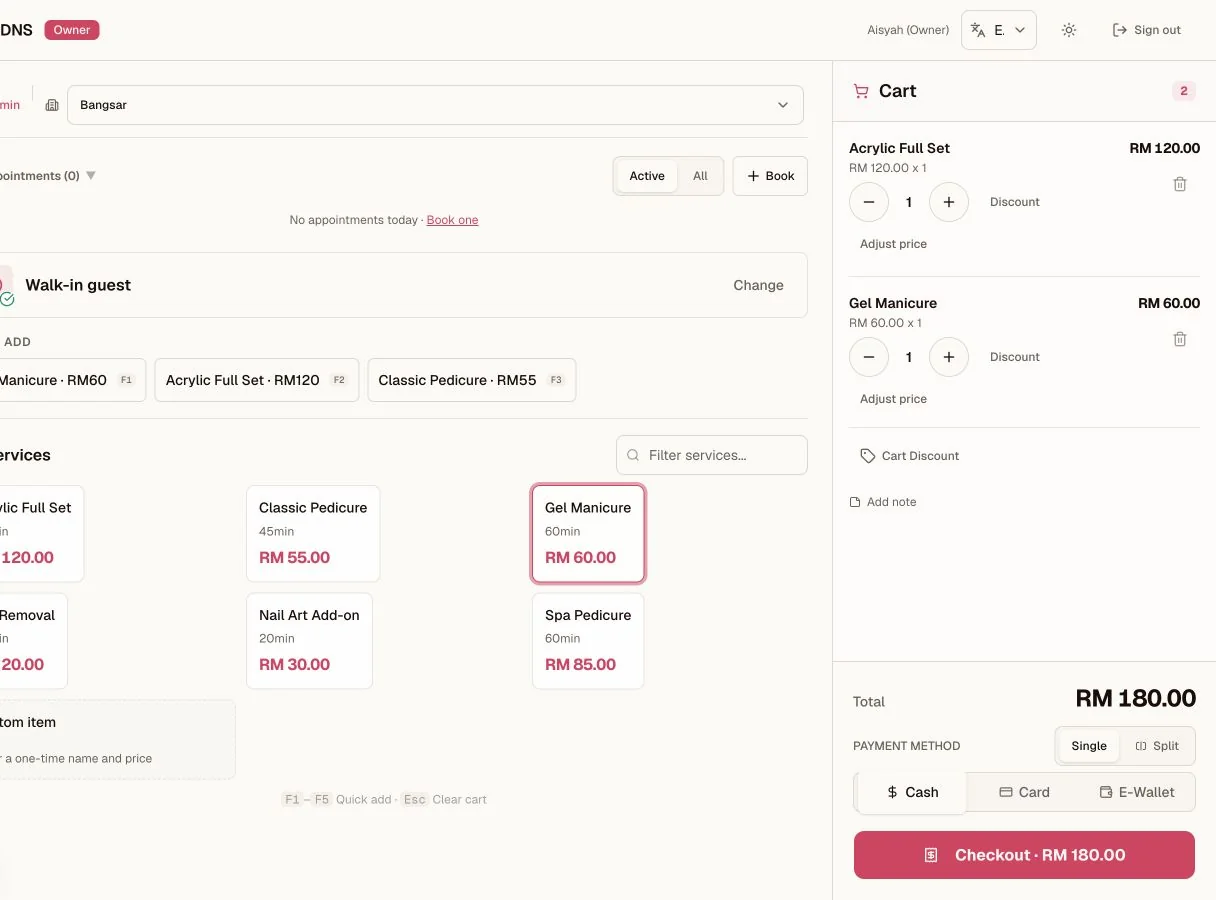
POS checkout
Choose the customer, add services, review the total, then record the payment method.
- 1The sale starts with a walk-in or registered customer.
- 2The cart keeps quantities and the total together.
- 3Payment stays visible beside the final checkout action.
3.1 Step one: who is this sale for?
| PATH | WHEN TO USE IT | WHAT IT UNLOCKS |
|---|---|---|
| Walk-in | Customer not in your list, or in a hurry | A fast sale. No member prices, credit, or free visits; those need a profile. |
| Search | Returning customer or booking contact: type name or phone | Customers show package credit and membership. Roles that can view customer details also see visits, spend, and service notes. A Booking contact stays clearly labelled, has no customer perks before checkout, but can buy a package or membership. |
| New contact | First booking or visit | Create a Booking contact on the spot. A completed checkout changes the same record into a customer. |
Selecting a customer shows their notes only when the role can open customer details, so the right things are remembered before the service starts. A salon sees preferred shape, colours, and allergies; a wellness practice sees comfort preferences and methods to avoid; other workspaces see their own service notes. An owner can hide the Customers page for staff or branch managers. This does not stop a POS sale: they can still search by name or phone and see only the buyer's name, phone, package credit, membership, and voucher facts. Profile notes and history stay hidden. A Booking contact can buy services, packages, or memberships in POS, but customer notes, rewards, package credit, member prices, and vouchers stay unavailable until checkout completes.
3.2 Step two: add services
- If you are assigned to more than one active branch, choose the branch you are standing at before you add items. You can do this in Simple or Full POS. The counter will not move an active sale to another branch. Finish or clear it first.
- Tap a service card to add it at list price. Cards show duration and price.
- The service list opens instantly from a saved copy on your device, then refreshes in the background. If the latest prices cannot be checked, a Using the saved catalog notice appears; tap Refresh catalog before checkout so every price is current.
- Filter services… finds anything in two keystrokes.
- On a phone, the category row moves through a long service list without opening the cart.
- For a selected customer or Booking contact, the visible Services, Packages, and Memberships tabs switch the sale catalog without a long scroll.
- On a keyboard,
Escopens the clear-cart confirmation. - Member price, Use credit, and Use free visit buttons appear automatically when the customer qualifies; that's the next chapter.
3.3 Step three: the cart
- On a phone, tap View cart after you add the items. Use Back to services if the cart needs another item.
- Review lines; remove a mistake with the trash icon before checkout (after checkout, it's a void; see Chapter 09).
- Choose Cash, Card, or E-Wallet, or use Split for mixed payment (Chapter 05).
- The total is always visible; nothing rounds silently.
- Clear cart also clears the sale's discounts, payment split, note, and appointment link, so nothing from an abandoned sale carries into the next one. Change clears the full sale the same way before another customer is selected.
- If a sale was interrupted, an Unfinished sale from earlier banner offers Restore or Discard once the cart is empty again. An appointment, walk-in, receipt correction, or customer checkout link does not replace an unfinished sale for the same branch. Restore or discard it first, then open the link again. Restoring an unfinished sale checks its services against the live catalog. Current service amounts replace saved amounts. An inactive or missing service blocks restore. A deliberately adjusted amount stays only with its recorded reason. When amounts changed, any saved split payment is cleared too; enter the split again against the refreshed total.
FROM APPOINTMENT TO SALE IN ONE MOVE
If the customer booked, open their appointment (top of POS, or Appointments) and start checkout from there; customer and services ride straight into the cart. An Open in POS appointment link switches to the appointment's assigned branch before it opens, when that branch is assigned to you. It never moves an active sale. Completing the sale marks the appointment Completed for you. It also changes a Booking contact into a customer on the same record. Any staff member working the counter can do this for any of today's appointments at that branch, not only the one it was booked with.
If you instead find the customer by search first and they turn out to have an open appointment today, POS offers Start from appointment right there so the sale still links back to it instead of going through unrecorded. If the selected customer has more than one open appointment today, choose the correct appointment before POS fills the cart. An active walk-in or job must be completed or detached with Change before an appointment can start.
When POS starts checkout from an appointment, it verifies every booked service before it changes the appointment to In progress. A service that was deactivated after booking still enters the cart and is named for review. If a booked service cannot be verified, no services are added and the appointment is not started.
3.4 Step four: checkout & the receipt
- 1
Complete cash payment
For exact cash, complete the sale in one tap. When the customer hands you a larger note, enter Cash received first: tap Exact or a note button, or type the amount, then press Enter to finish the sale. Kipas shows the change before checkout and keeps it visible on the success screen. A short amount cannot be submitted, and an amount it cannot read says so instead of reporting it as short. Credit-only sales still complete in one tap.
- 2
Confirm terminal payment
Card / E-Wallet / Split show a quick "Confirm payment received"; tap it once the money is actually in hand or terminal. For a single E-Wallet tender, staff can open the business's static DuitNow QR. A business with the Fiuu sandbox connection enabled can request a provider QR instead. The provider flow creates the receipt only after the server confirms payment.
- 3
Use the receipt
The receipt screen shows items, totals, and exactly how it was paid. From here, download the PDF, send the receipt by email or WhatsApp, or start a New Transaction. When the owner configures a Google review link, it is included in an unrefunded receipt message.
IF THE CONNECTION DROPS DURING CHECKOUT
Keep the checkout open. When you confirm a card or e-wallet payment, Kipas saves the exact sale reference on this device before it sends the receipt. If the connection drops, do not take payment again. Use Retry exact sale when the connection returns. The same sale reference can create only one receipt.
If a card or e-wallet payment was confirmed but Kipas could not record the sale before a receipt was created, Payment needs review stays open. Do not take payment again. Retry the exact sale, or use Payment reversed or not taken only after you have confirmed that outcome.
REPAIR MONEY STAYS ON JOBS
A repair is not a generic POS sale. Receive it, record its estimate and payment plan, take payment, and hand the item back on Jobs. POS refuses a separate repair sale. If an older queue row has no Repair Job Account, use Add ticket before any payment or handover. Chapter 7.5 covers the full path.
AUTHORITY PAYMENTS STAY WITH THE RECORD
In a Wellness workspace, a visit with its own payment record is not a separate POS sale. If POS directs you back to Appointments, open the appointment and record the payment there. The receipt stays linked to the exact visit, its payment purpose, and its balance. In a Professional Services workspace, case money is recorded on the case account in Cases, never as a second POS sale.
Member benefits, automatic
You never calculate a discount or remember a balance. If a customer has something, the button is simply there.
4.1 The three things that can appear on a service card
| YOU SEE | IT MEANS | WHAT TO DO |
|---|---|---|
| Member price | Customer is an active member; eligible services price themselves lower (e.g. RM 98 instead of RM 108), with a Member badge. | Nothing. Add the service as usual. |
| Use credit | Customer has credit from a package or an eligible membership plan. Tapping pays for that service from their balance instead of cash. | Tap Use credit; their balance drops by the service amount. |
| Use free visit · N left | The membership buyer has free visits for that specific service. | Tap it; the line goes in at RM 0.00 and the count drops by one. |
BUYER VS SHARED MEMBER: THE RULE EVERYONE ASKS ABOUT
The buyer purchased the membership: member prices, free visits, and any spendable credit enabled for that plan. A shared member (e.g. family on the same plan) gets member prices only. If the free-visit or credit control doesn't show for a shared member, the app is working correctly: it's not a bug, and there is no workaround button hidden anywhere. Professional and catering workspaces call memberships Client plans. Retail and services workspaces call them Loyalty plans. The benefits and rules are the same.
4.2 If a button you expected isn't showing
- Is the customer a Walk-in? Walk-ins never see member anything; attach the sale to their profile instead.
- Free visits: is this person the buyer, do they have visits left, for this specific service, on an active membership?
- Credit: is there a balance, and is it past its expiry date? Expired credit can't be used (see Chapter 08).
- Credit not enough for the whole service? Use credit for its share and Split the rest into cash/card; the app caps it properly.
- When membership credit reaches RM 0, the plan decides whether member pricing stays active until expiry or ends at once. The receipt result explains which rule applied and can offer a new membership when that prompt is enabled.
- A full-price Package or Membership sale does not need an existing benefit. Select the customer, then open Packages or Memberships. If benefits are still loading or the profile says it could not load, you can still sell the catalogue item at its listed price. Retry the profile before using credit, member price, a free visit, or a voucher.
VOIDS GIVE EVERYTHING BACK
If a sale that used credit or a free visit is later voided by the owner, the credit and the visit are returned to the customer automatically. Nothing to fix by hand.
Taking payment & receipts
Kipas records how money moved; it never touches the money itself. Your terminal, your bank, your cash drawer stay exactly as they are.
5.1 Tenders, in plain words
| TENDER | COUNTS AS REVENUE TODAY? | NOTES |
|---|---|---|
| Cash | Yes | What you reconcile against the drawer at closing. |
| Card | Yes | Recorded; the money arrives via your own terminal/bank. |
| E-Wallet | Yes | Same, via your e-wallet provider. A configured static DuitNow QR can be displayed for a single-tender sale. |
| Package Credit | No (informational) | The customer is spending prepaid value, not new money today. |
| Membership Free Visit | No (RM 0) | A plan benefit being redeemed. |
| Split | Yes (its parts) | Shown as e.g. "Cash + Card"; parts already counted in the tenders above. |
STATIC DUITNOW QR
The owner can upload the business's static DuitNow QR in Settings > Payments. At POS, choose E-Wallet, open Show DuitNow QR, and let the customer scan it. The QR is not available for Split payments or public demo workspaces.
Kipas displays the QR. Staff mark the payment as confirmed after checking the business bank or provider app. Kipas does not verify the payment or reconcile settlement.
FIUU SANDBOX QR
A business with reviewed Fiuu sandbox credentials can enable a provider QR in Settings > Payments. At POS, choose a single E-Wallet tender and tap Request Fiuu QR. The cart stays locked while Kipas checks the payment status with Fiuu.
A confirmed provider payment creates the receipt automatically. A failed or expired request does not create a receipt. Retry creates a new payment request. If the customer pays after staff cancel, Kipas keeps the payment truth, shows a prominent alert, and links staff to the receipt or the payment exception list.
This is a sandbox integration. Public demo workspaces, Split payments, refunds, and voids do not use this provider flow.
5.2 Split payment
- 1
Choose Split
In the cart, tap Split.
- 2
Enter payment amounts
Enter amounts across Cash / Card / E-Wallet. Fill RM… drops the remaining balance into a row for you.
- 3
Balance the split
The screen shows short or over until the parts equal the total; it won't let you check out unbalanced.
- 4
Confirm payment
Confirm payment received → done. The receipt says exactly how it was paid.
5.3 The receipt
- Download: saves a PDF with the shop name, branch address, footer message, and the SST recorded on that sale. Changing tax settings later does not rewrite an old receipt. English, Chinese, and Malay names, items, and notes remain readable. Settings also chooses the letterhead: Centered stacks your name and logo across the top, and Split puts your business details on the left with the receipt number and date on the right, the layout most commonly used for a tax invoice. When a receipt was settled with more than one tender, the PDF lists what each one covered, so a customer can check the card line against their own statement. Kipas sets one platform-wide credit policy that also applies to the PDF: full credit with onlykipas.com, short credit, or no powered-by line.
- Share: Kipas prepares the PDF before it enables Share. Tap it when ready to open the phone's share sheet. WhatsApp it to the customer in two taps. Share sends the PDF receipt together with the receipt text in one step. Where the device cannot share files, it downloads the PDF instead.
- WhatsApp receipt: opens a prepared, branded text receipt with the receipt number, date, items, total, and payment method. It includes Subtotal and SST when tax applies. When membership credit, package credit, or a voucher paid part of the sale, services show their full value, followed by the service total, the credit used, the voucher, and the credit balance left after the sale; the balance is left out once the receipt has a refund. A membership or credit package sale states the credit it added. It discloses a partial refund before staff send it. It follows the current English, Chinese, or Bahasa Malaysia app language. Staff review and send it from the business WhatsApp number. It includes a secure link to the PDF receipt. The link works for 90 days and stops working if the receipt is voided.
- WhatsApp package / voucher update: when a receipt changes a customer's package, free-visit, or voucher balance, opens a prepared update they can review. If the browser blocks the new window, Kipas does not mark it opened. Allow pop-ups and try again.
- Membership credit used up: when this sale spends the last membership credit, the receipt screen, downloaded or emailed PDF, receipt email, and WhatsApp balance update state that RM 0 remains and whether the membership ended or stays active until its expiry. If the plan enables the renewal prompt, Offer membership starts a fresh sale for the same customer. It never adds or charges a plan automatically.
- Email receipt: when customer emails are on in Settings and the customer has an email on file, sends the receipt as an email with the PDF receipt attached (once per receipt); after a package or membership sale, an Email summary button sends what they bought and when it expires. If the customer has no email or unsubscribed, the button says why instead. A refunded receipt says so in the email as well as on the PDF.
- Customer email uses the business name and the shared messages@onlykipas.com sender. Replies still follow the configured business reply path.
- Reprints later: from Home or My Day, tap a recent receipt to open it directly; otherwise Admin → Receipts → open the receipt → same PDF.
- Edition payment link: in a Wellness workspace, the receipt view names the exact visit and the payment purpose, such as deposit or balance. Use that link label when you reconcile a staged payment. If POS says the visit has its own payment record, return to Appointments and take payment there. In a Professional Services workspace, a case receipt names its case number in the receipt notes. The receipt, refund, void, and daily closing rules remain the same.
Customers & notes
Your customer history, kept in one place, so "the usual?" is a question you ask with confidence, not a guess.
6.1 Adding and finding customers
- Add: New contact in POS creates a Booking contact. Add Customer in Admin → Customers creates a customer. Name is required; phone and email are optional.
- Contact preferences: the optional Preferred language field records English, 中文, or Bahasa. Follow-up messages that use recommended wording are prepared in that language; custom wording and other messages are unchanged. Owners can turn on Do not contact while editing an existing customer. Kipas then excludes that customer from appointment reminder and suggested outreach targets until an owner turns it off.
- Email: if the customer shares one, save it here; with customer emails switched on in Settings, they get an email reminder the day before their appointment. The consent tick box underneath is only for occasional birthday/offer emails; leave it unticked unless the customer agrees. When a consenting customer's birthday month comes around, the Customers birthday list shows a one-click Send birthday email button. Your team sends it, never a robot. Every email carries an unsubscribe link.
- No-phone customers are first-class: they book and buy normally, show as "No phone", and simply have no WhatsApp button (there's no number to message).
- Search in POS: type a name or phone; the profile panel shows visits, spend, credit, membership, and notes.
- Find a customer or receipt: use the search on Customers or Receipts. Choose a customer to open the full profile, or choose a receipt to open its detail. Owners can switch the Customers page to the separate Booking contacts list.
- Booking contacts: staff can find a labelled booking contact in appointment, roster, walk-in, and POS selectors. Quick-add actions in those daily workflows create a Booking contact. Only owners can open the subdued Booking contacts list in Customers.
- Public booking: when an accepted request has no matching phone identity, Kipas creates a Booking contact and links the appointment. A cancellation or no-show does not convert a Booking contact into a customer.
6.2 Preferences & notes: the little black book
Each customer has a profile for service needs, preferences, and notes (Admin → Customers → open customer → Edit). Beauty workspaces can record treatment details such as nail shape, colours, sensitivities, and usual staff. Wellness workspaces use service concerns, comfort preferences, methods to avoid, the usual practitioner, and care notes. Other workspaces use client or service notes that match their work. Useful notes appear in POS when the customer is selected and in the booking screen, so the team can prepare. Empty sections stay hidden, and notes never appear for Walk-in.
For Wellness, keep only shared client preferences in the customer profile. Put visit-specific cautions, intake review, consent, and practitioner notes in the Wellness visit. For Professional Services, use the customer profile only for shared communication or meeting preferences. Put the scope, approvals, documents, and restricted notes in the case account. This separation keeps the next worker from treating a general profile note as current consent or approved scope.
6.3 The WhatsApp button
Wherever a customer has a phone number, a green WhatsApp button opens your WhatsApp with a prepared message you can edit before sending. On My Day, a reminder stays in place while its action saves and only clears after the record is kept. Mark confirmed also updates the appointment when your role can manage the calendar. Otherwise, Kipas records the note and tells you that the appointment status did not change. On Messages, the status changes as soon as you tap. If saving fails, the previous status returns and an error explains what happened. On the Messages, Reminders, and Walk-ins pages, a blocked new window is not marked opened, and a waiting walk-in is not marked called. Kipas tells you to allow pop-ups and try again. If a saved phone number cannot open in WhatsApp, for example because it contains letters or a symbol between the digits, Kipas says so instead of opening WhatsApp. On Messages > Follow-ups and in the My Day follow-up preview, the row shows the reason and an Open customer record link in place of the WhatsApp button. On reminders and everywhere else, the button stays and explains the problem when you tap it. Fix the number in the customer record. Phone fields warn about such a number when you enter it, but still let you save. Remember golden rule 1: nothing is ever sent automatically. A no-phone customer is never a problem; they just skip the messaging features.
6.4 The full profile
Open any customer in Admin → Customers for their whole story: package credit balance, membership, recent receipts, upcoming appointments, favourite services, total spend. This is also where the owner can grant package credit manually. Note that a manual grant records no payment; to actually take money for a package, sell it through POS (Chapter 08).
The owner-only Booking contacts view is separate from the customer total, birthday and lapsed lists, ordinary customer export, rewards, promotions, and follow-ups. A booking-contact record shows honest identity and contact details plus recent future, past, cancelled, and no-show appointments. The owner can edit contact details, merge duplicates, anonymize identity, or start checkout. When two records share a name, the duplicate-review panel shows the phone, completed-visit count, and lifecycle label for each record. Customer portal links, service profiles, spend metrics, package grants, memberships, vouchers, and occasion messages stay unavailable until completed checkout makes the person a customer.
Owners can use the customer menu to Send portal link or revoke the current link. If the browser blocks the WhatsApp window, Kipas does not log or claim it as opened; allow pop-ups and try again.
The customer portal puts upcoming appointments first. Packages, membership benefits, and vouchers appear together below the appointment list. A place in a shared group session appears in the same list, marked as a group session; the customer can see it but cannot change or cancel it from the portal, and never sees who else is attending. For their own one-to-one appointments, a customer can confirm that they are coming or book another appointment without entering contact details again. Cancel and reschedule create a request for the business to review. One unresolved request blocks a conflicting second request. After the business acts, the portal shows the result and the applied time for a reschedule. Recent cancelled appointments stay visible.
A customer record can also hold optional e-invoice details (a TIN, and an NRIC or passport number). These are stored for future individual e-invoices and do not print on today's receipts. Anonymizing a customer removes them.
If a customer asks for identity removal, an owner can choose Anonymize customer from the same menu. Kipas removes contact, tax, booking, queue, portal, and service-profile identity data. Receipts and appointments stay as business records under Former customer. This action cannot be undone and requires a reason.
Appointments, walk-ins & professional cases
Use the appointment book for scheduled time, the walk-in queue for counter work, and a case account for continuing professional work. Each route keeps its own accountable record.
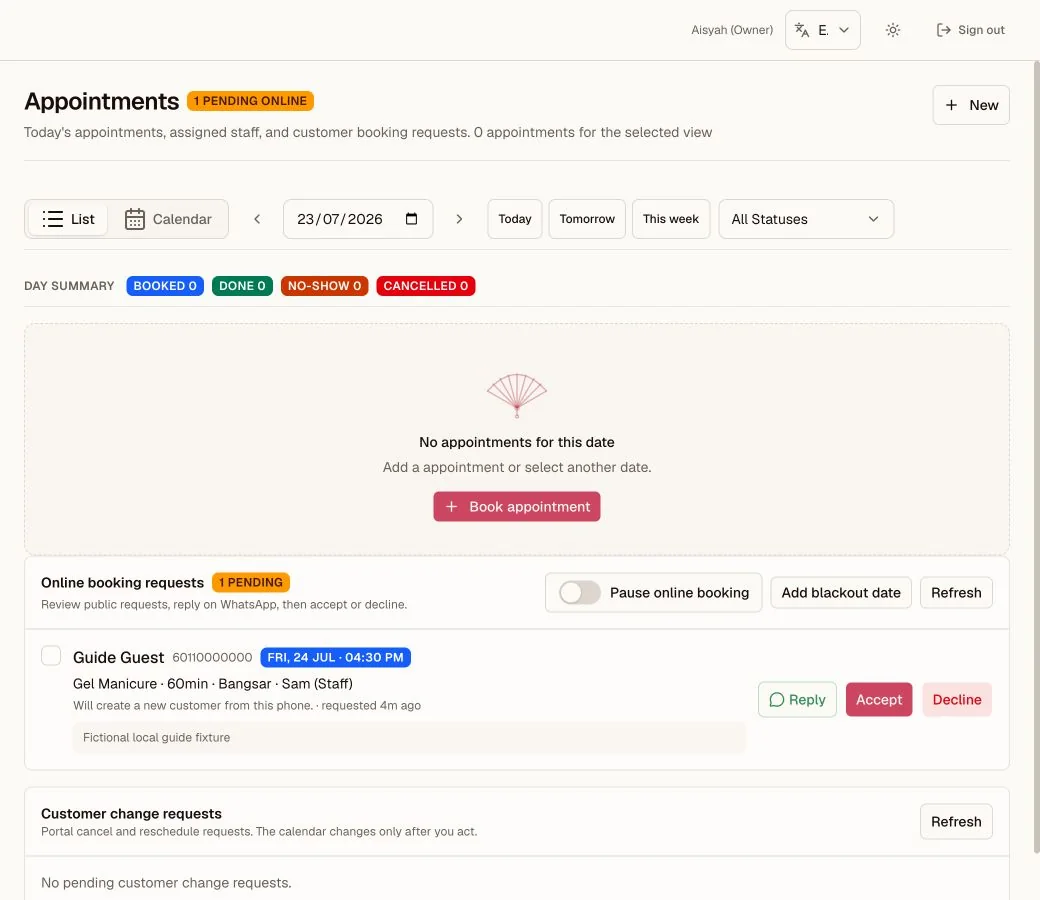
Booking request handling
A public request stays pending until the team replies, accepts it, or declines it.
- 1The pending count remains visible beside the page title.
- 2Owners can pause booking or add a blackout date here.
- 3Reply, accept, and decline are explicit team decisions.
SIX EDITIONS, ONE GUIDE
This chapter walks the appointment book and the walk-in queue the way a salon runs them. If your workspace runs another edition, the part that replaces this chapter lives in its own: retail jobs in chapter 15, catering events in chapter 16, wellness visits in chapter 17, and professional sessions in chapter 18. The counter, money, and closing chapters apply to every edition unchanged.
7.1 Booking an appointment
- 1
Start a booking
Tap Book (POS top bar) or New (Admin → Appointments).
- 2
Choose the customer and services
Choose the customer, the branch, and one or more services; total duration adjusts itself.
- 3
Choose time, staff, and resource
Pick date & time, and optionally the staff member. If the branch uses scheduling resources, you can also choose a room, station, or equipment item. Wellness and professional services workspaces can also set a Group size.
- 4
Create the appointment
Create. If the same staff member is already booked at an overlapping time, you'll get a conflict warning; adjust time or assign someone else.
A staff member's My Day page puts assigned one-to-one and group sessions into one time-ordered agenda for today and the next 7 days. An assigned room, station, or equipment item appears on that session. Group sessions show the active attendee roster. Its WhatsApp tasks card lists tomorrow's reminders and a short follow-up preview: expiring credit and memberships, birthdays this month, unused free visits, and lapsed customers. If the follow-up preview cannot load, the card says so and offers Try again instead of an empty list. The full follow-up list, including customers with no next booking, is on Messages > Follow-ups.
The Appointments page opens on the current day. Appointment-led professional workspaces place booking requests and group work before the schedule. Other workspaces keep the day schedule first. A wellness workspace does not enable the walk-in queue by default. If the owner enables it, the queue appears as real work on Overview and My Day. These changes affect presentation only. The same bookings and filters remain available.
Views: List or Calendar, date arrows, and status filters. On Calendar, drag a booking to another time or another staff lane to reschedule it; hold a moment before dragging on a tablet. Kipas checks the new slot exactly as it checks a new booking, so a clash is refused and explained, and a message offers Undo for five seconds. A day that is already past shows its bookings for reference but takes no new ones. From My Day, Home, or Messages, use Open appointment. Users who can manage the calendar jump straight to that record. View-only users open the correct date and can see the appointment in the list. No-phone customers book normally. They do not get WhatsApp reminders. Customers marked Do not contact keep their appointments but do not appear in reminder targets until an owner turns that setting off. This control does not depend on AI. Kipas AI does not write customer-addressed messages in this release. Staff review and edit the prepared reminder before WhatsApp opens the current text. Booking confirmations follow the business-wide Friendly, Short, Formal, or Custom WhatsApp choice in the current Kipas language. If the browser blocks a reminder or confirmation-link window, Kipas stops before creating the link or marking it opened. Allow pop-ups, try again, and keep the new tab open until WhatsApp appears.
When you edit an appointment, the service list stays closed until you type in the service search box. This keeps the customer, staff, date, and time fields easy to reach. After you add a match, the same search stays open so you can add another matching service.
Owners and branch managers can open Business setup → Resources to add rooms, stations, or equipment. The appointment form shows the optional Resource field only when the selected branch has an active resource. Kipas blocks overlapping appointments that use the same resource. Public demo managers can inspect Schedule and the Resources seeded for wellness and professional workspaces. These pages are read-only. Demo staff do not receive these manager-only links.
For a group session, the lead customer uses the first place. Create the appointment, reopen it, and use the roster to add an existing person or quick-add a Booking contact. Kipas will not let the roster exceed the group size. If adding the new contact to the roster fails, the Booking contact stays searchable so you can retry or find it later. Each attendee with an email gets their own appointment reminder, and each can confirm their own place from it.
An owner can publish a saved group session from its roster panel. The public page shows the service, branch, date, time, and number of places left. In Pending requests mode, accepting the request adds the customer to the existing roster. It does not create another appointment. In Auto-book mode, submission adds the customer at once. Kipas locks the group session before it adds a place, so two customers cannot take the same last place.
7.2 The appointment lifecycle
Scheduled → Confirmed → In progress → Completed (or Cancelled / No-show). Accepting an online request creates a Scheduled appointment and reserves the time. The customer confirmation link changes it to Confirmed when the customer says they are coming. Update status from the appointment itself when staff confirm by another channel. The new status appears immediately. Reversible changes include Undo for five seconds. If saving fails, the previous status returns. A wrong tap into Cancelled or No-show is not stuck: an owner or branch manager can use Restore from the same appointment, on the Appointments page or in POS, at any time afterward, not just within the five-second window; it always asks before changing the record. Restore marks the appointment Confirmed. Kipas automatically marks a Scheduled appointment No-show once its time passes with nobody updating it, so a past appointment restored straight back to Scheduled would only be swept to No-show again; Confirmed avoids that and is one tap closer to Start Service besides. On My Day, the Appointments page, or from POS itself, use Open in POS for today's appointment. POS selects its branch and expands the exact appointment. Review it, then use Confirm or Start Service as needed. Opening it does not change its status. Anyone working the counter can check a customer out of any of today's appointments at that branch, not only the staff member it is assigned to; POS still shows who it was booked with. A one-person sale completing marks it Completed. If a customer is selected into an empty cart by search and they also have an open appointment today, POS offers Start from appointment so the sale still links back to it. If the selected customer has more than one open appointment today, choose the correct appointment before POS fills the cart. An active walk-in or job must be completed or detached with Change before an appointment can start. Either way, POS verifies every booked service before it changes the appointment to In progress; a service deactivated after booking still enters the cart, named for review, and a booked service that cannot be verified stops the handoff with no services added and no status change.
For a multi-branch counter user, Open in POS switches to the appointment's assigned branch before it opens, when that branch is assigned to you. It never moves an active sale, so finish or clear that sale first.
For a group session, POS asks which attendee is checking out. Complete one sale and one receipt for that person. The appointment stays In progress while another booked attendee is waiting. The last attendee checkout marks the session Completed. You can still complete the appointment directly when the session ends without another checkout.
When a customer asks to cancel through their portal, use Cancel appointment in Customer change requests. For a reschedule request, use Reschedule appointment, review the requested time, and apply it. Kipas updates the appointment and closes the request together. Use Decline request when the appointment must stay unchanged. Use Close as handled only when the team completed the work another way; that action does not change the appointment. After a cancellation or a declined request, Kipas emails the customer automatically when an address is on file, and the confirmation toast offers a one-tap WhatsApp message with the same outcome.
7.3 Online booking requests (from your public page)
New customers and customers without a personal portal link use the public link from Settings to request a one-to-one appointment or a published group session. Customers with a portal link can book another appointment without entering contact details again. In Pending requests mode, your team reviews each request. Accepting a one-to-one request reserves the time, creates a Scheduled appointment, and creates its customer confirmation link. Accepting a group-session request adds the person to the existing roster. If no matching phone identity exists, acceptance creates a Booking contact. The record becomes a customer only after completed checkout.
Requests with the same phone, branch, service, and time stay together. Kipas marks each later copy as Duplicate request. After you accept one request, its matching copies show Already booked and no longer show Accept. If another appointment uses the same time, the request shows Time may be full, but Accept stays available and verifies staff capacity. If no staff remain, the request changes to Slot no longer available. Reply on WhatsApp so the customer can pick another time, then decline the old request.
In Auto-book mode, a one-to-one request inside your rules creates the appointment at once. A group-session request takes a place at once when capacity remains. Kipas checks the slot or group capacity again inside the booking transaction.
You do not have to watch the page for new requests. Every new booking request emails the workspace owners within about a minute, with the customer, the service, and the time they asked for. One email per request: replying to a request or opening the page never triggers another.
When customer emails are on in Settings and the requester has an email on file, accepting or declining also emails them the outcome. An accepted one-to-one request includes the same confirmation link as the WhatsApp message. An accepted group-session request confirms the place but does not include a link that can change the shared appointment. The customer must contact the business to change a group-session place. The toast notes whether the email went out or was skipped.
Every reminder and booking-outcome email ends by telling the customer how to reach you. It offers a reply only when your workspace has a reply-to address on file; otherwise it gives your branch phone number, and when neither exists it simply asks them to contact the business. Keep the branch phone filled in under Settings so a customer who wants to change or cancel always has a way through.
The booking form also has an optional email field with a consent tick box for birthday and offer emails. When you accept the request, that email and consent are saved to the matched record, but only if the record has no email yet. Anything your staff typed is never overwritten.
7.4 The walk-in queue
- Walk-ins page: add a customer to the queue when they arrive; see who's waiting; assign and serve. To change the order, drag a waiting card by its grip, or use the up and down arrows; a message offers Undo for five seconds.
- Link an existing customer when you can. If customer search is unavailable, use Try again; the form keeps the one-off queue option open without pretending there was no match.
- The dashboard's Next in Queue card keeps the front desk honest about who's next.
- When their turn comes, tap Start in POS on the queue card. POS loads the linked customer and requested services, then marks the queue entry In service. Complete payment there.
- In service also has Complete without a sale. It asks first. Use it only when they leave unpaid. Use Checkout if they paid.
- For a completed walk-in, View in receipts opens that sale's exact receipt; no searching the receipt list again.
- Retail and services teams: this page is Jobs. After you write a ticket, payment and hand-back live there, not in POS. See chapter 15.
Packages & memberships
Your prepayment engine. Packages bring money forward; memberships bring customers back.
8.1 Packages: prepaid credit
| QUESTION | ANSWER |
|---|---|
| What is it? | A customer pays up front (often at a discount) and holds a credit balance to spend on services later. |
| How do I sell one? | Select the registered customer in POS → Packages → choose the package → take payment. (Owner's manual grant in Admin records no payment; use POS for real money.) |
| How is it used? | Use credit on service cards (Chapter 04). Credit caps at the service's charge amount; the rest can be split-tendered. |
| Expiry? | Optional per package. Expired credit can't be used. The Messages > Follow-ups lane lists credit expiring within 30 days so you can remind customers to use it. |
| If a sale is voided? | Credit used to pay for services returns automatically. If the voided sale purchased the package itself, the unused package becomes Voided and its credit and sessions become zero. A package that has already been used cannot be voided. |
8.2 Memberships: plans with perks. The app uses Client plans for professional and catering workspaces, and Loyalty plans for retail and services workspaces. These names use the same membership engine and rules.
- Member pricing on eligible services, applied automatically at the counter.
- Optional spendable credit per plan: in Membership settings, turn on Amount paid becomes spendable credit when the buyer should receive the exact membership amount paid as credit. It applies to future membership sales only. The buyer can spend it after member pricing is applied; shared members do not share the balance.
- What happens at RM 0 is also a plan setting: choose Keep membership active until expiry or End membership when credit is fully used. The choice is copied to each future membership sale, so changing the plan later does not rewrite memberships already sold.
- Optional renewal prompt: turn on Prompt staff to offer a new membership to show Offer membership after the last credit is spent. The button opens a fresh membership sale for the same customer; staff must still choose a plan and take payment.
- Free-visit allowances for specific services (3 free Classic Manicures at a salon, or 2 free Reflexology sessions at a wellness practice), redeemed with the green button, tracked down to the last visit.
- Buyer vs shared member (the golden rule from Chapter 04): buyer gets prices + free visits; shared members get prices only.
- Coverage limits are firm: a plan that covers 3 people covers exactly 3. The system refuses a fourth, even from two devices at once, and a plan and its free-service list always save together or not at all.
- Select the registered customer in POS → Memberships → choose the plan → take payment, so the payment is recorded properly.
- If the purchase receipt is voided before any free visit, member price, or spendable credit is used, the membership becomes Voided and its remaining benefits and credit become zero. A membership that has already been used cannot be voided.
WHY STAFF CAN NEVER "ADJUST" THESE
Credit balances and free-visit counts only move through sales, voids, refunds, and owner actions, each one written to the Audit Log. That is what keeps prepaid money honest, and it's why the app refuses unusual moves instead of allowing them quietly.
Wrong sale? Voids
The void is the eraser: for the sale that should never have happened. Use it confidently; it's built for this.
9.1 When to void
- Wrong service or wrong amount rung up.
- Sale attached to the wrong customer.
- Duplicate sale by accident.
Not for: a customer coming back days later unhappy; that's a refund (next chapter). Void means this sale was a mistake.
9.2 What a void does
- Removes the sale from revenue, commission, and daily closing.
- For a repair receipt, keeps the original payment and adds a negative void entry to the Repair Job Account timeline. The exact balance opens again.
- Restores any customer credit or free visit the sale consumed, back to the customer, automatically.
- Revokes an unused package or membership bought on the voided receipt. Used entitlements block the void so the owner can review the correction.
- Keeps the record, struck through, with your reason, forever, in the Audit Log.
9.3 How to void (owner)
- 1
Open the receipt
Right after the sale: on the receipt screen, tap Void Receipt. Later: Admin → Receipts → open the receipt.
- 2
Enter a reason
Enter a short, clear reason: "Wrong service selected". It shows in the audit trail, so make it mean something.
- 3
Confirm the void
Confirm. Then ring the sale up again correctly, if needed.
STAFF CAN'T VOID, AND THAT'S THE POINT
If a staff member makes a mistake, they call you. An eraser that everyone can use isn't an eraser; it's a loophole. If the day is already closed, reopen it first (Chapter 11), then void.
Giving money back: refunds
The sale stands; the value returns. Refunds are for real sales that later went wrong: a bad job, a changed mind, an untouched package.
10.1 The three kinds
| KIND | USE IT WHEN |
|---|---|
| Full refund | You're returning the whole remaining refundable amount of the receipt. |
| Partial refund | Only specific line items or quantities go back. |
| Custom amount | Part of one line, e.g. RM20 back for a job that wasn't worth a full refund. |
Every refund records the tender returned (cash/card/e-wallet) and a reason. Credit and free visits attached to refunded lines restore automatically. Commission reverses on the refund date; history is never rewritten, it grows a correction. A refund linked to a repair receipt also appears as a negative entry on that Repair Job Account and reopens the exact balance. Record a reasoned waiver when the refund is an intentional concession rather than money still owed.
10.2 The two rules that block people most
A CLOSED DAY REFUSES REFUNDS
Refunds belong to the day they're issued, and a closed day is locked (golden rule 3). If today's closing is done: reopen today's Daily Closing → issue the refund → close again.
PACKAGE / MEMBERSHIP PURCHASES: UNTOUCHED ONLY
Refunding a purchase of a package or membership revokes that entitlement (credit zeroed, benefits removed), so the app only allows it while nothing from it has been used. If the customer already spent credit, took a free visit, or enjoyed member pricing from it, the refund is refused with the reason shown. This cannot be undone once confirmed; read the warning. Do not work around a block manually; if money must move, that's an owner decision handled outside the app and noted.
10.3 How to issue one
- 1
Choose the refund
Admin → Receipts → open the receipt → choose Refund (remaining), Partial refund, or a custom amount on a line.
- 2
Enter refund details
Select lines/quantities if partial; enter the tender returned and the reason.
- 3
Confirm the refund
Confirm. The original receipt stays; the refund appears as its own record, and in tonight's closing.
MIXED RECEIPTS
Normal service lines refund normally. A package/membership purchase line on the same receipt follows the untouched-only rule above.
Daily closing
Ten minutes each night that buy you books you can trust. One closing per branch, per day.
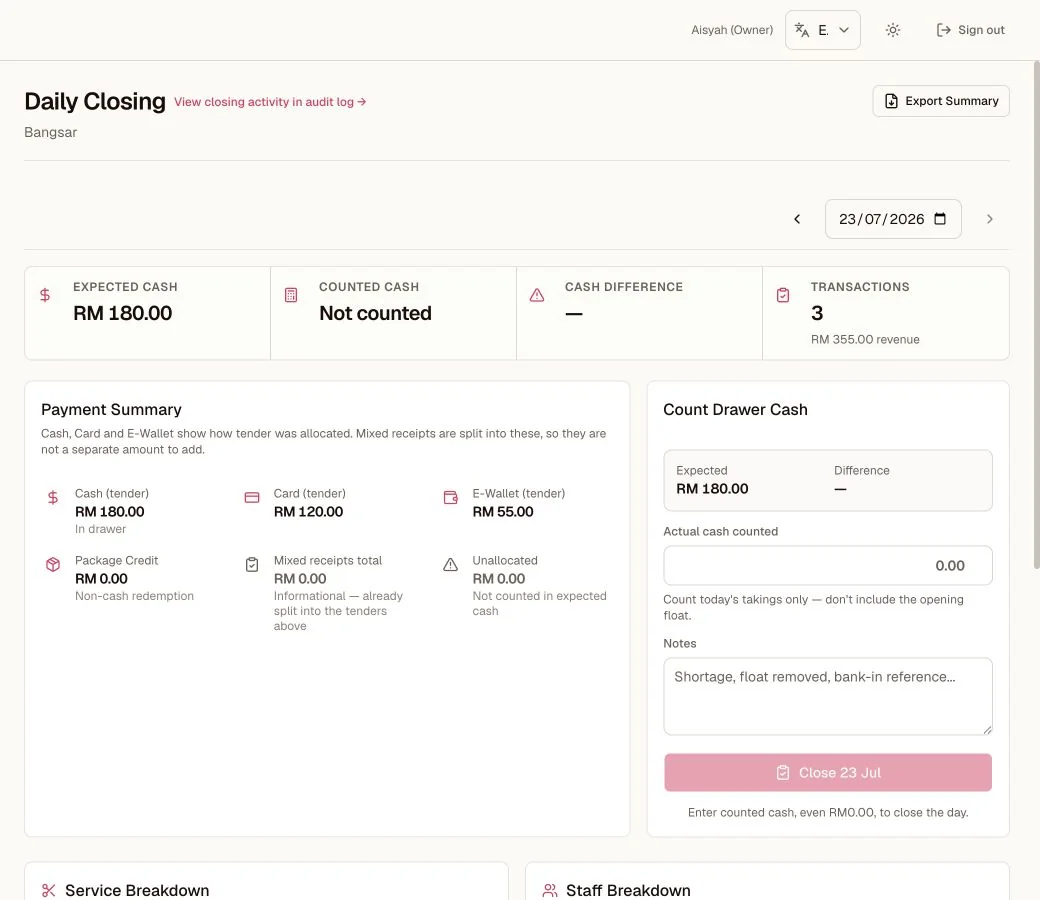
Daily Closing
Compare expected and counted cash, record the real variance, then close the day.
- 1The summary separates expected cash, counted cash, and the difference.
- 2Tender totals explain how the expected cash was built.
- 3The person closing enters the actual cash before the day can lock.
11.1 What the page tells you (Admin → Daily Closing)
- Total revenue and transaction count for the selected date and branch.
- Tenders: how much came in by Cash, Card, E-Wallet.
- Refunds by tender (money returned that day).
- Package Credit used: informational; prepaid value spent, not new money.
- Split receipts: informational; their parts are already inside the tenders.
PAID BUT NOT MATCHED
A Fiuu payment can be confirmed by the provider while the sale still fails a server check. Daily Closing shows these payments in a separate read-only list. They are not inside the totals, because no receipt was ever written for them, and the day will not close while any of them are still unmatched. Resolve each one, then close.
11.2 Closing, step by step
- 1
Count the cash
Count the cash in the drawer.
- 2
Enter counted cash
Enter the counted cash. If the drawer took no cash that day (card and e-wallet only, or no sales at all), No cash today; close at RM0.00 fills in RM0.00 and opens the confirm step in one tap.
- 3
Review the summary
Review the summary; it notes voided receipts excluded, credit used, and any unallocated amount.
- 4
Close the day
Close the day. The page records who closed and the cash difference. If a sale, void, or refund changes while the page loads or while you count, Kipas stops the close and asks you to review a fresh summary.
11.3 The three warnings, translated
| WARNING | MEANING | WHAT TO DO |
|---|---|---|
| Cash difference | Counted cash ≠ expected cash. Small differences are normal life. | Recount. Still off? Look for a missed sale, a refund, or a void. Enter the real count and close; honesty beats tidiness. |
| Unallocated | A mixed receipt has a missing, incomplete, or invalid tender split. Its unallocated amount is not assigned to cash, card, or e-wallet. | Open the receipt and check how it was paid. Correct the split if you can, or leave historical data unallocated. |
| Voided excluded | Reassurance, not a problem: cancelled sales were left out of totals. | Nothing. |
11.4 Reopening
Closed too early or need to fix something? Open that date → Reopen → make the correction (void, refund) → close again. The day re-locks with the correction inside.
WHY THE APP WON'T LET YOU SKIP THIS
Closing is what makes tomorrow's "vs yesterday" cards, commissions, and reports mean something. A business that closes every night knows where its money is. A business that does not is guessing.
The owner's toolkit
Everything beyond the counter, in one chapter: money insight, the retention engine, the team, and the settings that shape it all.
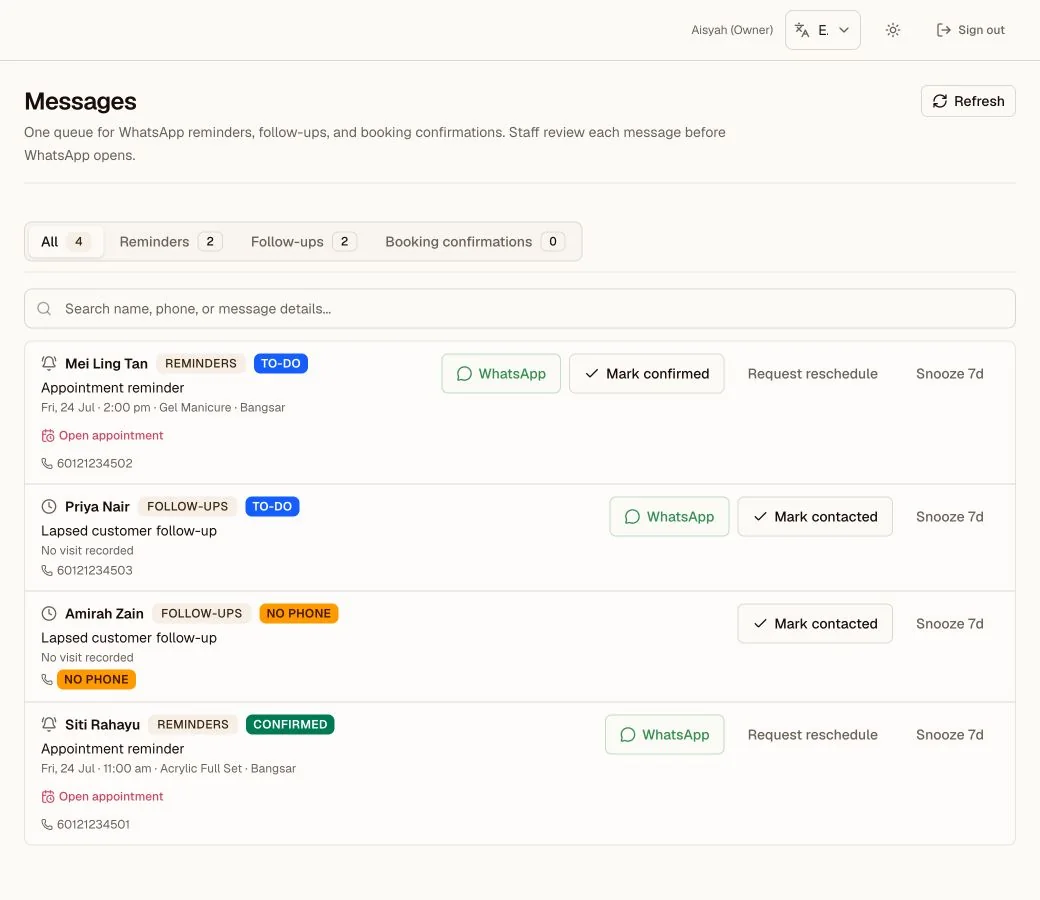
Messages worklist
Review due WhatsApp work by lane, then record the action the team took.
- 1Lane counts show which message work is waiting.
- 2WhatsApp opens a prepared message for staff review.
- 3Status actions keep the queue honest without claiming delivery.
12.1 Knowing your numbers
- Overview (dashboard): the first action, metric order, and section order match the business type and enabled modules. The Action Center ranks decisions and exceptions that need the owner. A revenue drop or a day with no sales is business context, not an action by itself. The home works on phones as well as on desktop, so there is no separate Mobile Home, and the Daily Checklist has been retired: its cards live on the home. The Action Center also lists days from the last fourteen that still need a daily closing (with a note when no cash was taken), tomorrow's reminders and open follow-ups, and exceptions such as a void spike or a team member on duty with no sales. A seven-day sales glance sits under today's money. When today's revenue is RM0, the revenue metric says whether the selected branch is closed today, not open yet, open until its effective closing time, or already closed, and shows how many people are scheduled now. Once at least three comparable days exist, revenue pace uses the median of the prior four same weekdays at the same operating-day progress. A repair workspace keeps the four headline metrics, a clear Received, In progress, and Ready pipeline, the Action Center, and money on its default Overview. Open Jobs for stage and priority controls, and use Reports or the Audit Log for detail. Other workspaces keep the matching queue, schedule, performance, and branch sections. Customize remains on desktop and lets you reorder or hide sections on this device. The saved order also applies on small screens. Open Reports, Receipts, Messages, or Settings for detailed trends and email activity. Money calculations, branch filters, and drill-down links stay the same. Today's sales follow the Malaysia calendar from midnight to midnight, including sales before 8am.
- Reports: the wider lens. The report cards and detailed sections follow the priorities of your business type. Revenue, refunds, tender totals, commissions, and date filters use the same calculations in every workspace. The Compared with switch sets every change figure against the previous period or the same period last year, and the link is kept in the URL. The Staff Comparison table sorts the team by commission, sales, transactions, or average sale, and the staff CSV carries the same columns.
- Receipts: every sale, filterable (Active / Voided / Refunded / Partial), day summaries, CSV export.
- Owner data export: Settings > Export includes the Wellness visit, consent-version, event, and practitioner-note records, plus the complete Professional Case datasets: cases, scope versions, approvals, the document register, status history, work and appointment links, custody, updates, payment allocations, and financial events. Receipt exports keep the exact visit or case link and payment purpose.
- E-invoice sandbox: build and submit one consolidated test document for a completed month. The preview excludes voided receipts and blocks any month that has a linked refund.
- Commissions: monthly per-staff earnings from their credited sales and your configured rates; export CSV for payroll. Commission starts off for every team member. Turn it on only for people who should earn it; this affects new service, package, and membership sales only. Set one percentage or fixed RM rate for all active services, packages, or memberships, then adjust individual items when needed. New sales save the rate used at checkout, so later edits do not rewrite past payroll. Voids remove commission; refunds subtract on their issue date; free visits earn none.
- Audit Log: every sensitive action with actor, time, and reason. Booking request acceptance, decline, and automatic expiry also appear here, and so does handing back a job that still owes money, recorded with the outstanding balance and the reason given. Each Repair Job Account also keeps its own estimate versions, decisions, stage corrections, payments, voids, refunds, waivers, handovers, warranty start, cancellation, reopen, and follow-up links. A linked receipt number opens that exact receipt. When something looks wrong, the answer is here.
12.2 The retention engine
- Messages: the daily review queue. It contains the lanes enabled for the workspace. Appointment-led workspaces can open on due booking confirmations. Retail workspaces can open on due ready-job contacts. Workspaces without bookings show follow-ups without empty booking lanes. Start morning queue presents due reminders and follow-ups one at a time. Staff tap, review, edit if needed, then send from your number. Kipas AI does not write messages addressed to customers in this release. The WhatsApp button uses the text currently on screen and stays unavailable when the draft is blank. Deterministic controls exclude customers marked Do not contact from reminder and follow-up targets, independent of AI. The queue records each WhatsApp open or Skip action. Mark contacted or Snooze 7d keeps the full list clean.
- Reminders: appointment nudges due to go out, same review-first pattern.
- Messages > Follow-ups: your daily win-back lane. It includes Expiring credit or memberships, unused Free visits, Lapsed customers, and recent visitors with No next booking. The Suggested outreach section adds customers with package credit or memberships expiring within 30 days (a membership renewed on the same plan drops out), customers who have visited before but not in the past 60 days and have no future appointment, and birthdays in the current Malaysia month. A customer with no recorded visit is not lapsed. Booking contacts and customers marked Do not contact are excluded. The section shows at most 200 lapsed targets and 150 targets for each package-expiry, membership-expiry, and birthday kind. If a server result exceeds a cap, a list-limited notice says that more matching records may exist outside the current result. A load error shows Retry instead of an empty list. A staff account without an assigned branch asks the owner for a branch assignment and does not show Retry. Each prepared WhatsApp message uses the customer's preferred name and the real visit count, spend, last visit, credit, plan, and expiry from their records. With a recommended tone it is written in the customer's preferred language when one is set, otherwise in the app language; custom wording is used exactly as written. A number that cannot open in WhatsApp keeps its row, with the reason and a link to the customer record, and has no WhatsApp button. Staff review each message and send it manually, one tap per customer. Snooze 7d hides a target for seven days. Mark contacted hides a lapsed customer for 30 days or until a new visit, an expiring package or membership until it no longer qualifies, and a birthday for the rest of that month. A Free visits or No next booking row marked contacted returns the next day, and a free visit is offered only while its membership is still running. Messages, My day, and the home's open follow-ups count all apply the same rule.
- Promotions: first choose who receives the reward. The form explains the full rule before you save it. Birthday rules use the issue period that you choose later. For customers who have not returned, choose how many days since their last completed visit; a customer with an upcoming appointment does not qualify. Add branch, service, membership, package, or visit conditions only when you need them. Choose a simple duration such as 1 month or 1 year, or set custom dates. A saved manual promotion can make each voucher expire when the promotion ends, 1, 3, 6, or 12 months after issue, or never. The same saved reward can be issued to different customers without rebuilding it; each customer receives a unique voucher and expiry. Issue voucher sends a saved promotion to one registered customer or creates a one-off voucher. Issue to matching customers lets you choose a clear issue period such as This month or Next 30 days. Promotion rewards and saved validity stay locked during issue, retries do not create duplicates, and every voucher is tracked to redemption.
12.3 The team
- Staff: roster, roles, per-person sales and last-active; add staff, send secure account emails, deactivate. Account status distinguishes Invite not sent, Invite sent, Password set, and Signed in. A Pre-tracking badge means authentication proves prior account access, but the event happened before lifecycle tracking. The exact time was not recorded. Not recorded means there is not enough evidence to claim an invite or password step. Repeat account emails have a ten-minute cooldown. (Tip: a kiosk login type exists for a shared counter device.)
- Schedule: working hours, custom hours, days off; feeds booking availability. Its title and guidance use the workspace team language, such as practitioners or team members. If its roster cannot load, it shows Retry instead of pretending the location has no team. Copy Last Week only copies people who are still active at the selected location. An owner who also works the floor appears in this grid at whichever location is selected, the same as any other team member.
- Attendance: clock-ins, network-verified (only from your approved workplace network, set in Attendance Networks), optional selfie sampling. Staff scheduled now on the dashboard comes from Schedule and checks each shift against the current Malaysia time. Attendance shows actual clock-ins separately. Team members with a scheduled day off show a Day off badge and are not counted as "Not in yet".
12.4 Settings that matter
Settings has six categories: Personal, Business, Sales and payments, Customers and messages, Team and access, and Setup and data. Search opens the exact section page. Each section keeps its own changes and has its own Save and Discard changes actions. A failed section save keeps the edits on screen and does not submit another section.
| SETTING | WHAT IT CONTROLS |
|---|---|
| Workspace | Your personal Simple or Full switch, first in the Business group. It is per person, saves the moment you tap it, and never changes data or permissions. Staff and managers carry the same switch in the app header and profile sheet. |
| Business type, workday, and modules | Kipas sets the business type during onboarding. Contact support to request a change. Owners of non-salon workspaces can choose a supported workday pattern and the workspace modules the team sees. An Other Service pattern must have its required modules. Setup shows the missing module and links back to Settings. Salon workspaces keep their current layout. |
| Business identity | Set the full name, short name, app mark, and app theme. Logo uploads save at once. The workspace logo also appears above your business name in customer email. Salon and beauty workspaces keep the Kipas beauty banner. Other business types use a neutral header. Each identity or brand section has its own Save action. |
| Receipts | Set the printed name size, letterhead, logo, position, alignment, phone, receipt SST number, footer, and notes in one section. Choose which BRN, TIN, MSIC, and supplier SST lines print. Each line prints only when it is on and has a value. Phones show the preview inside the section. Larger screens keep the preview beside the form. Receipt-logo uploads and removal save at once. |
| SST | Tax on/off, rate, and whether your prices already include tax. |
| Google reviews | Paste the review link from Google Business Profile. Receipt emails and WhatsApp receipt messages include it after an unrefunded sale. Leave it empty to omit the link. |
| Payments | Manage two separate QR paths. The static DuitNow QR is an owner-uploaded image that staff verify in the business bank or provider app. The Fiuu sandbox connection stores encrypted OPA credentials, shows only a fingerprint, requires a successful connection test, and remains unavailable until both the owner and the platform gate enable it. Saved credentials are never shown again. |
| Repair jobs | For Retail and Services workspaces, choose whether estimate approval is required, set the default deposit calculation, and set optional warranty defaults. The warranty starts only when the property is collected. Staff can override the warranty setting, duration, and terms on each job. |
| Branches | Address & phone per outlet; they appear on that branch's receipts. |
| Online Booking | Turn public booking requests on or off. Copy the public link, open it, share it on WhatsApp, or use its QR code. |
| WhatsApp messages | Choose one business-wide tone: Friendly, Short, or Formal. With a recommended tone, follow-up messages are written in each customer's preferred language when one is set. The page shows realistic customer previews and keeps technical details hidden. Custom wording remains available under Advanced settings and stays saved when you switch to a recommended tone. An owner can edit the birthday follow-up template there. Kipas prepares the message for staff to check. It never sends by itself. |
| E-invoice profile | Supplier identifiers, address, contact details, and encrypted MyInvois sandbox credentials. The supplier SST field is separate from the receipt SST field. When it is empty, Settings starts it with the receipt value. Credentials save with their own button. Use Reports to preview and submit a completed month. Sandbox results are tests only. |
| Page visibility | Which pages staff and managers can see. |
| Customer emails | The Owner emails row controls the Monday digest. Customer email switches control reminders and birthday messages. Customer emails are off by default. They use the business name, include an unsubscribe link, and never replace the WhatsApp review queue. An unsubscribe blocks that email address from every customer email for the business, including another customer profile that uses the same address. You can edit the reminder and birthday wording and see a live preview. The preview loads the current published Kipas wording used by real sends. If that wording is unavailable, Settings labels the sample as non-exact and offers a retry. The preview also shows the closing line that tells a customer how to reach you: a reply invitation when your workspace has a reply-to address, otherwise your branch phone number. Kipas sets the brand credit on customer emails, prepared WhatsApp messages, and PDF receipts: full credit with onlykipas.com, short credit, or no Powered by Kipas line. Leave a field empty to keep the standard wording. Every workspace has a monthly sending allowance; when it runs low the workspace shows it, and when it runs out sending pauses until the next month. Kipas can also pause a workspace's sending entirely if something looks wrong; email hi@onlykipas.com if sending seems stopped while your allowance is not used up. |
| Weekly digest | This switch is in Customer emails under Owner emails. The Monday email contains last week's totals and exceptions. It highlights voids, refunds, failed reminder attempts, and booking requests that expired without an answer. |
Hiccups, A to Z
Every "it's not working" we've ever heard, with the fix. Check here first; the answer is usually two lines long.
- A button I expected (Use credit / Use free visit) isn't showing.
- Walk-ins never see member buttons; attach a profile. For free visits: buyer (not shared member), visits left, for that service, active membership. For credit: balance exists and not past expiry. If all true and still missing, note the customer and time and message us.
- Packages or memberships do not appear when I select a customer.
- Choose the registered customer, then open Packages or Memberships in POS. A slow or failed benefits read must not stop a full-price package or membership sale. Retry the profile before using credit, member price, a free visit, or a voucher. If an active catalogue still does not appear after a refresh, note the customer, branch, device, and time, then contact us before taking payment.
- Payment needs review after I confirmed a card or e-wallet payment.
- Do not take payment again. The sale stays held under one sale reference. Tap Retry exact sale. Use Payment reversed or not taken only after you have confirmed that outcome, then start a fresh sale.
- The customer is a shared member and wants the free visit.
- Shared members get member prices only; that's the plan design, not a bug. The buyer can use the visit; or they pay the member price, which is still a good deal.
- Refund is blocked: "day is closed".
- Golden rule 3. Reopen today's Daily Closing → issue the refund → close the day again. The refund counts on the day it's issued, not the original sale date.
- Refund of a package/membership purchase is blocked.
- Something from it was already used (credit spent, a free visit taken, member pricing enjoyed); revocation is only safe while untouched. Keep the receipt; handle the gesture as an owner decision outside the app and note it.
- I rang up the wrong service/amount/customer.
- Before checkout: remove the line with the trash icon; done. After checkout: owner voids it (reason, confirm) and rings it up again. Any credit or free visit used comes back automatically.
- Staff member says they can't void or refund.
- Correct: they can't, by design. Only the owner. This protects everyone, including them.
- Split payment won't check out.
- The parts don't equal the total; the screen shows short or over. Use Fill RM… to drop the remainder into a row, then confirm.
- Package credit doesn't cover the whole service.
- Use Use credit for its share, then Split the rest into cash/card/e-wallet. The app caps credit at the charged amount automatically.
- Appointment conflict warning.
- That staff member is already booked at an overlapping time. Move the time or assign someone else; the warning is doing its job.
- Customer booked online but nothing is confirmed.
- In Pending requests mode, staff first accept the request and reserve the time. The appointment stays Scheduled until the customer confirms that they are coming or staff confirm through another channel. In Auto-book mode, the time is reserved immediately, but the same attendance confirmation step remains.
- Customer lost their confirmation/portal link.
- For security, those links expire and only one live link exists per customer. Find the customer and re-send/re-issue from their appointment or profile.
- Customer has no phone number.
- Fine. Save them name-only. Everything works except the WhatsApp button (nothing to message). They'll show "No phone".
- Clock-in didn't register.
- Attendance only counts from approved networks (Settings → Attendance Networks), such as your workplace Wi-Fi. Check that the device uses an approved network. This prevents clocking in from elsewhere.
- Daily Closing shows a cash difference.
- Recount the drawer. Still off? Look for a missed/extra sale, a refund, or a void. Enter the true counted cash and close; the difference is recorded honestly, which is the point.
- The receipt PDF looks wrong: name too big, no logo.
- Settings: Receipt name size (S/M/L) and the logo/emoji options (show, position, align). Branch address comes from Branches.
- Someone forgot their password.
- Tap Forgot password? on the sign-in page, enter the account email, then wait for Check your inbox. The owner can also send a fresh, single-use password link from the Staff page.
- The app says the workspace is locked.
- The account was suspended by Kipas. That's an owner→Kipas conversation; email hi@onlykipas.com.
- I can't find a feature a staff member mentioned.
- Check the branch selector (top bar); many pages filter by branch. Then check Settings → page visibility: the owner controls what non-owner roles see.
- Where did last week's summary go?
- It arrives by email each Monday, automatically: the weekly digest. Check spam once; after that it just works.
- The installed app opened while the internet was down.
- Kipas shows an offline page instead of a browser error. Reconnect, then tap Try again. If you were taking payment, do not start a new sale. Open POS and use Retry exact sale, or check the receipts list first.
- Still stuck.
- Email hi@onlykipas.com with your business name, what you selected, and what you expected. Add screenshots when possible.
Good habits & the words we use
Small rituals that keep the books clean and the customers coming back.
14.1 Daily
- Morning: glance at Overview, then use Start morning queue to work through each due reminder and follow-up before doors.
- Midday: spend ten minutes in Messages > Follow-ups. Review expiring credit, lapsed regulars, and customers with no next booking.
- Night: Daily Closing, every branch, no exceptions. Count, enter, close.
14.2 Weekly & monthly
- Read the Monday digest email; skim Reports for the trend, not just the day.
- Slow week ahead? A small Promotion voucher drop beats a quiet diary.
- Month end: Commissions → export CSV → payroll. Peek at Audit Log while you're there.
THE WHOLE PHILOSOPHY IN ONE LINE
Serve at the counter, correct with the owner, close every night, and let the app remember everything else.
14.3 The words we use
| WORD | MEANING |
|---|---|
| Void | "This sale was a mistake." Removed from the books; credit/visits restored; owner-only. |
| Refund | "The sale happened; value went back later." Stays in history; counts on its issue date; owner-only. |
| Tender | How money moved: cash, card, e-wallet (or package credit / free visit, which aren't new money). |
| Package | Prepaid credit, sometimes with an expiry. Sold in POS; spent with Use credit. |
| Membership | A plan: member prices for everyone on it, free visits for the buyer only. |
| Buyer / shared member | Who bought the plan (prices + free visits) vs who shares it (prices only). |
| Closing | The nightly seal on a branch's day. Locked days are why your numbers can be trusted. |
| Audit Log | The permanent record of every sensitive action: who, when, why. |
Retail jobs
A repair or service counter runs on job tickets, not appointments: the property comes in, an estimate is approved, the work is done, and the property goes back. The ticket carries the money story from deposit to hand-back.
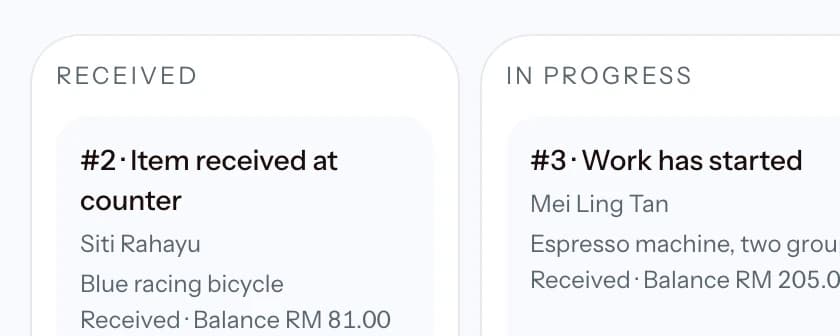
Retail jobs
The job ticket keeps the property, the estimate, and the money on one record from intake to hand-back.
15.1 From intake to approval
Retail and services workspaces use Jobs. At intake, identify the property in generic terms, record any serial or reference number, list accessories received, describe its condition, keep the customer's reported issue separate, and record how the customer acknowledged the intake. Link the customer and assign a team member when available. The form does not assume a bicycle, appliance, phone, or any other repair category. Drag a card within Received, In progress, or Ready to set priority. Drop it into another active stage to open Change stage with that destination selected. Nothing changes until the dialog is confirmed, and all diagnosis, approval, role, and backward-reason checks still apply. Use the card's priority menu when dragging is inconvenient. Simple and Full use the same saved order and stage. Collected and cancelled jobs appear in Archive. For an abandoned item, use Cancel with a clear reason so the property, money, and audit history stay available. Choose where the work happens: in the workshop, or at the customer location with a recorded service address. On-site jobs follow the same account, estimate, and money rules; nothing about the location changes what a payment or a version can do.
The account moves through Received → Diagnosing → Estimate sent → Approved → In progress → Ready → Collected. A valid forward jump is allowed when its diagnosis and approval prerequisites pass. A backward correction always needs a reason and records the actor, time, old stage, new stage, and reason. An owner or branch manager can correct a mistaken collection back to Ready. This clears the mistaken handover and warranty start, but keeps the prior facts in history. Once follow-up work is linked, the original collection cannot be changed.
Record the technician diagnosis before sending an estimate. Add one line for each part, labour item, or fee, set an optional validity date, and define the deposit, instalment, and final-payment steps. Sending and customer approval or decline are separate actions. Recording the send can also open a prepared WhatsApp message that carries the item, the exact total, and the validity date; a blocked pop-up records nothing. A call-out or travel charge is priced as its own fee line, never disguised as labour. Approval records the decision channel, representative name, and note. A material scope or price change creates a new immutable estimate version and makes the earlier approval stale.
15.2 Money, hand-back, and follow-up work
Take every repair payment from the Repair Job Account. Each receipt is allocated to its deposit, instalment, or final step. The same retry reference returns the same receipt after a lost response, even when the payment completed the balance. The account shows payments, refunds, voids, waivers, and waiver reversals as one timeline. A void or refund reopens the exact balance. POS is only for a separate counter purchase. Choose the registered customer or Walk-in there; POS never attaches that sale to an open job and cannot receive the job balance. After a payment is recorded, the dialog offers the new receipt straight away: share or download the PDF, send the WhatsApp update, or email it, without leaving Jobs.
When the work is Ready, use Hand back and record who received the property and how they acknowledged it. A fully settled account closes normally. If money is still owed, only an owner or that branch's manager can release it, and a clear reason is required. An optional warranty starts at this collection time, not at intake. The owner can set defaults in Settings and each job can override the enabled state, duration, and terms. After the handover you can send a WhatsApp confirmation that repeats the recorded warranty end date and terms. For an on-site job the same action reads Complete visit, the prepared message is a visit confirmation carrying the address and any promised time, and completing the visit records the same handover facts as a counter collection. The workshop ready email is not offered for on-site work; the completion message says the work finished at the recorded address.
Use Cancel with a reason and the correct money resolution. A no-payment cancellation, a fully refunded cancellation, and a retained-fee cancellation remain distinct. An owner or branch manager can reopen a cancelled account only when retained money no longer remains. A manager can record a balance waiver with a reason, including after collection when a refund or void intentionally becomes a concession.
A return visit is a new linked job, not an edit to the original. Choose Warranty return, Rework, Additional work, or Customer complaint and state the reason. Warranty return is available only while that job's recorded warranty is active. The new job receives its own intake, estimate, payments, stages, and history while the original stays intact.
Catering events
A catering event is one order that lives for weeks: the date, the original order lines, the location, and the money agreed for it. The event account keeps every payment tied to that agreement until the day is fulfilled.
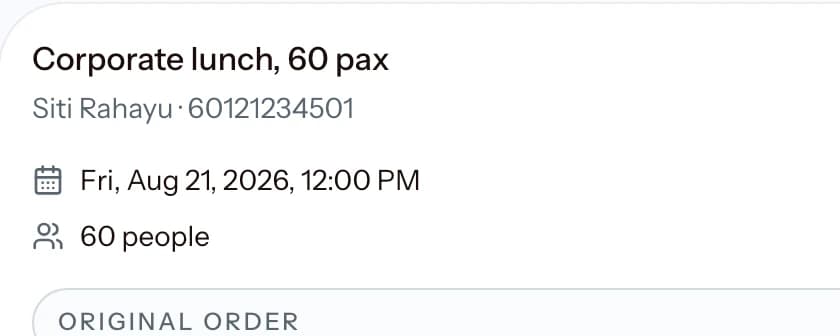
Catering events
The event keeps its order lines, location, stage, and payments together until fulfilment.
16.1 The event and its account
In a Catering and events workspace, Catering events replaces the ordinary Appointments page. Each event uses an appointment to keep its date, time, branch, customer, and person in charge, while the event stage, original order lines, location, and optional guest count stay on the event record.
Delivery and on-site work require an event location. Pickup shows the catering business location. Each new event gets an Event Account with a booking deposit and final balance. Use Customize plan before the first payment to change the amounts, due dates, or add later instalments. Use Collect next payment so every receipt is assigned to the correct payment.
A refund reopens that payment and the event balance. An event with money still due cannot be marked fulfilled. Simple mode gives the team a read-only event order board.
Wellness visits
A wellness appointment is a guided visit: minimal intake, an exact consent-and-price version, and an authority trail the server enforces before service can start.
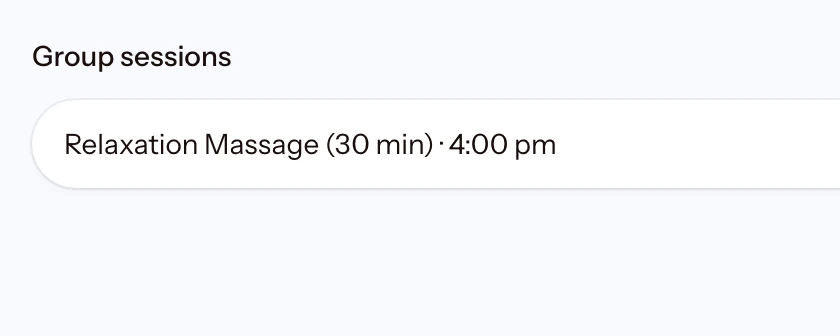
Wellness sessions
Practitioner and room schedules lead the day; a group session shows its roster and remaining places.
17.1 The guided visit record
A Wellness appointment uses its own guided visit record. Create the visit, record only the minimum intake information, assign the practitioner, create an exact consent-and-price version, and record the client's decision. The panel shows the complete current immutable version, who recorded each authority event, and every linked receipt.
A revised version needs a written reason and supersedes the exact earlier version. The server will not start service without a current accepted version, completed intake review, an assigned practitioner, and any required pre-service payment. Completion also needs a settled balance or an explicit manager waiver.
Use the visit controls for status, assignment, and payment. If POS directs you back to Appointments, use these controls and do not create a second sale. The generic editor keeps the customer, branch, service set, assigned team, and group size locked. Generic appointment status, POS checkout, bulk status, and rebook shortcuts are unavailable for this record.
Client sessions & professional case work
Professional work runs on booking requests, client sessions, and case accounts. A case account keeps the approved scope, evidence, custody, money, and follow-up separate from the calendar: an appointment stays simple while continuing work is governed.
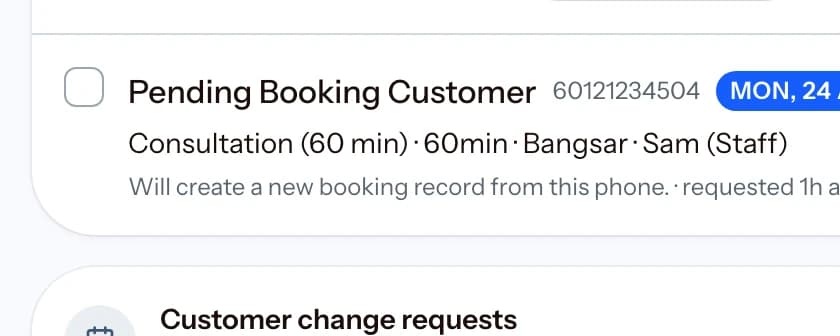
Professional sessions
Requests arrive first; nothing reaches the calendar without the decision your workflow requires.
18.1 Day patterns and commissions
A Professional Services owner can choose Client sessions, Classes and cohorts, or Sessions and classes in Settings. Client sessions place new booking requests before the schedule. Classes place participant rosters first. The mixed pattern keeps requests, private sessions, and group work together. The same appointment records, access rules, and reports remain in use.
Professional Services workspaces include commissions in setup and reports when the module is enabled. Each team member sees their own month-to-date commission on My Day. Owner and manager access does not change.
18.2 Professional case accounts
A Professional Services workspace uses Cases for work that continues across documents, approvals, external organizations, payments, and follow-up. The case account is the main record. An appointment is optional linked activity, not the case itself. This supports runner and government-service work, consulting, coaching, and other continuing professional work.
Create a new scope version when the work, professional fee, or external advance changes. An approval applies only to the current version. A later version needs a new approval. Register every required document and its review state. Mark sensitive material and physical originals. Record each receipt, move, return, delivery, and correction of an original. Private files use short-lived access links. Never store passwords, OTPs, bank logins, portal credentials, security answers, or login PINs.
Before you upload a private file, Kipas reserves one document record and one file location. If the network stops, retry the same document. Do not create a second record. The document remains incomplete until Kipas confirms the stored file. Stored evidence is immutable after confirmation.
Record planned and completed work with evidence. Link an appointment only when time on a calendar is useful. Move the status to show whether the team, client, or an external party owns the next action. A recorded client update is an audit record. Kipas does not send it for you and does not claim that the client received it.
Keep professional fees separate from external-fee and incidental advances. Assign every payment to one category. Before you lower an approved amount, refund, void, or reverse every payment, waiver, or disbursement that would exceed the new amount. Record disbursement evidence, reversals, waivers, refunds, and void effects in the same account so the team can explain the balance.
If a case-payment response is lost, reopen the same case on the same device and retry the saved payment. Kipas uses the original payment key, scope, and allocation to check the original receipt. It never applies that retry to a later scope version.
If a disbursement, waiver, or reversal response is lost, reopen the same case on the same device and retry the saved financial event. Kipas reuses its original event key, approved scope, case version, time, and details. It returns the original event if it was recorded. It does not apply a retry to a later scope.
The owner can set a default completion wording, client terms, and reminder days. When normal completion has no other reason, Kipas records that wording, saves the client terms with each approval, and shows the deadline reminder dates to the case team. These are record and planning aids, not automatic client messages.
If a receipt is refunded or voided after a case was cancelled, Kipas moves the case to a restricted correction state. Record only the required waiver or disbursement reversal there. You cannot take a new payment, add a new waiver, add a new disbursement, or resume case work. An owner or manager can cancel the case again after reconciliation.
If an owner anonymizes a customer, Kipas removes case contact and narrative fields, deletes restricted notes, and blocks workspace access to private evidence. It also blocks new case changes and new saved payment or financial retries. An existing payment receipt may be retried without writing new information. A held original may be returned or delivered with a generic record. Refunds and voids remain available to reconcile retained money without restoring client text. Money allocations, status history, and custody timing remain for financial and audit continuity.
Before closure, Kipas checks the current scope approval, required documents, original custody, completed work evidence, and unresolved money. If later work needs a separate commitment, create a follow-up case instead of reopening history without a clear boundary.
Events and venues
An event is an enquiry that turns into a commitment: a date, a venue, a client, and money agreed in stages. The Event Account holds all of it, from the first phone call to the archived record.
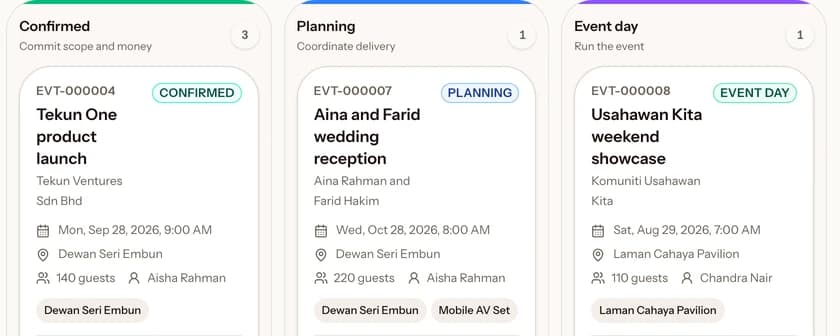
Events and venues
The board walks every event through its stages, keeping the client, venue, guests, and money due on one card.
19.1 From enquiry to event day
In an Events and venues workspace, Events and venues replaces the ordinary Appointments page. Every event sits in one of eight states, and the board shows which: Inquiry, Tentative hold, Confirmed, Planning, Event day, Completed, Cancelled, and Archived. When someone calls, tick Quick capture on the new event form: it asks only for the client, a title, and a start time, and takes the rest from your shop defaults.
A Tentative hold reserves rooms, stations, and equipment while the client decides. Those holds expire on their own if the event is never confirmed, so a venue is not blocked by an enquiry nobody chased. Sending a hold back to Inquiry releases its reservations at once.
What Confirmed requires is your rule, not ours. The Confirmation rule on the event decides whether a deposit is enough, or whether an accepted proposal has to come with it. Cancelling releases every active reservation and cancels the open payment requests. A cancelled event can be reopened to Inquiry, but the reservations do not come back: make them again if the client returns.
19.2 Proposal, acceptance, and payment
The Proposal and payments tab holds the priced offer. Every change writes a new version that supersedes the last, so the document the client actually agreed to stays readable after the price has moved on. Record what they agreed with Record acceptance.
Payment requests split the total into a Deposit, any Instalment, and the Balance. Their amounts have to equal what is still owed on the event, so a schedule cannot quietly disagree with the proposal it belongs to. An amendment cannot drop the total below what the client has already paid.
Every event payment writes an ordinary receipt, so event money reaches the same daily closing and the same reports as counter takings. If that branch's business day is already sealed, the payment is refused until someone reopens it.
19.3 The day itself
Reserved resources are the rooms, stations, and equipment the event is holding. A reservation has to cover the whole event rather than part of it. Timeline is the run sheet for the day, and it shows the gaps between items, so an uncovered hour is visible before it arrives rather than after. Partners records the outside suppliers you are relying on.
Guests keeps the list: expected numbers, RSVP replies, and whatever the client tells you. Bring a list in with Import CSV and take one out with Export CSV. The export offers a version that withholds dietary and access notes, for the times you are handing a list to someone who has no business reading health information.
Plan carries the task list, copied from a Workflow template when the event was created. Editing that template later does not rewrite an event already under way, which is what makes it safe to improve. What a colleague sees depends on their venue and their role: an owner sees every event, a manager sees the venues they are assigned, and staff see events at their own venue. A staff member without money access sees that an event exists without seeing the client or the figures.
Kipas AI
Kipas AI is a read-only copilot for reports, record explanations and summaries, briefings, Guide questions, and previews. It helps you review work. It does not write messages addressed to customers in this release. It never changes a record, sends a message, takes payment, or makes a business decision.
20.1 Turn it on and stay in control
The pilot uses one live workspace. A platform administrator admits one workspace at a time, and the owner of that workspace must separately opt in under Settings → AI assistance. Neither platform admission nor owner opt-in is sufficient by itself. The fleet safety control and a reviewed route must also allow the request. Restricted-data assistance has a separate owner control. An internal QA workspace remains available as an optional dry run, but it is not a gate before the live pilot. Public demo workspaces cannot use provider AI. Every AI result is a suggestion for a person to review.
The copilot can use selected Kipas Guide passages and records that your current role can already read. Workspace context and pasted text are treated as person-linked data. Professional cases, private files, and restricted records are treated as restricted data. The server raises the privacy class from the facts it retrieves. The browser cannot choose a tenant, lower a privacy class, choose a model or provider, change a route cost setting, or supply evidence facts. The server checks your authority again immediately before a request leaves Kipas. In this release, Kipas AI helps staff with reports, record explanations and summaries, briefings, import and attachment previews, and Guide questions. It does not write messages addressed to customers.
Guide answers in the panel come from a search on Kipas's own servers. Kipas shows selected passages and links from its published Guide. When Kipas recognises a Guide question itself, the question is not sent to an AI provider.
Answer cards are computed by Kipas from the same figures as Reports and Home. No AI model writes these cards. Only the owner can read answer cards. The Reading line shows what Kipas reads, the date range, the calculation basis, and the branch scope. Cards and Guide answers use the same workspace opt-in and AI controls.
When Kipas cannot place a question itself, it can send the question text and today's date, and nothing else, to the AI provider to classify it. The reply is a fixed set of choices, such as the kind of question, which figure it asks about, and the period. It never contains figures or answer text. Kipas then reads the figures itself and builds the card, Guide answer, or note with the same role rules. Each classification uses one workspace unit. If classification is unavailable, the question goes to the ordinary copilot instead.
Choose Start over to clear the current panel. Kipas does not keep a server-side AI conversation or store prompts and answers in its AI control tables. Normal business records stay subject to their existing retention rules.
20.2 Cost, privacy, files, and fallback
Kipas uses reviewed routes with an approved data policy. Paid direct Anthropic routes can use Claude Haiku 5.5, Sonnet 5.5, or Opus 5.5 after each model passes its checks. For public, non-personal, and person-linked work, a platform administrator can approve Anthropic's standard API retention. Under that policy, Anthropic normally retains inputs and outputs for up to 30 days and does not use them for model training. Legal or abuse-prevention exceptions may apply. Restricted work still requires a verified zero-data-retention agreement. A platform administrator can pin a qualified zero-cost profile by hand for public or non-personal work, but Kipas does not search for zero-cost routes or use one as budget continuity. Person-linked and restricted tasks use a paid profile only.
If a model is unavailable, a quota is reached, or the approved budget is exhausted, Kipas returns a named fallback and charges no workspace units. Continue with the ordinary Kipas screen. Core bookings, records, receipts, and reports do not depend on AI.
Supported previews accept up to two private PDF, JPEG, PNG, or WebP files, with a maximum of 8 MiB each. Kipas treats file content as untrusted, uses the native PDF route only when verified, deletes claimed files after the attempt, and runs a retention job to retry deletion failures.
Kipas reviews newer models through a synthetic-only smoke test and bake-off. The platform console tracks exact provider endpoints, approved cost ceilings, discounts, test evidence, cost, route changes, cooldown, rollback, quarantine, key health, tenant limits, and deletion backlog. A newer model does not replace an active model until those checks pass and a platform operator activates it.